
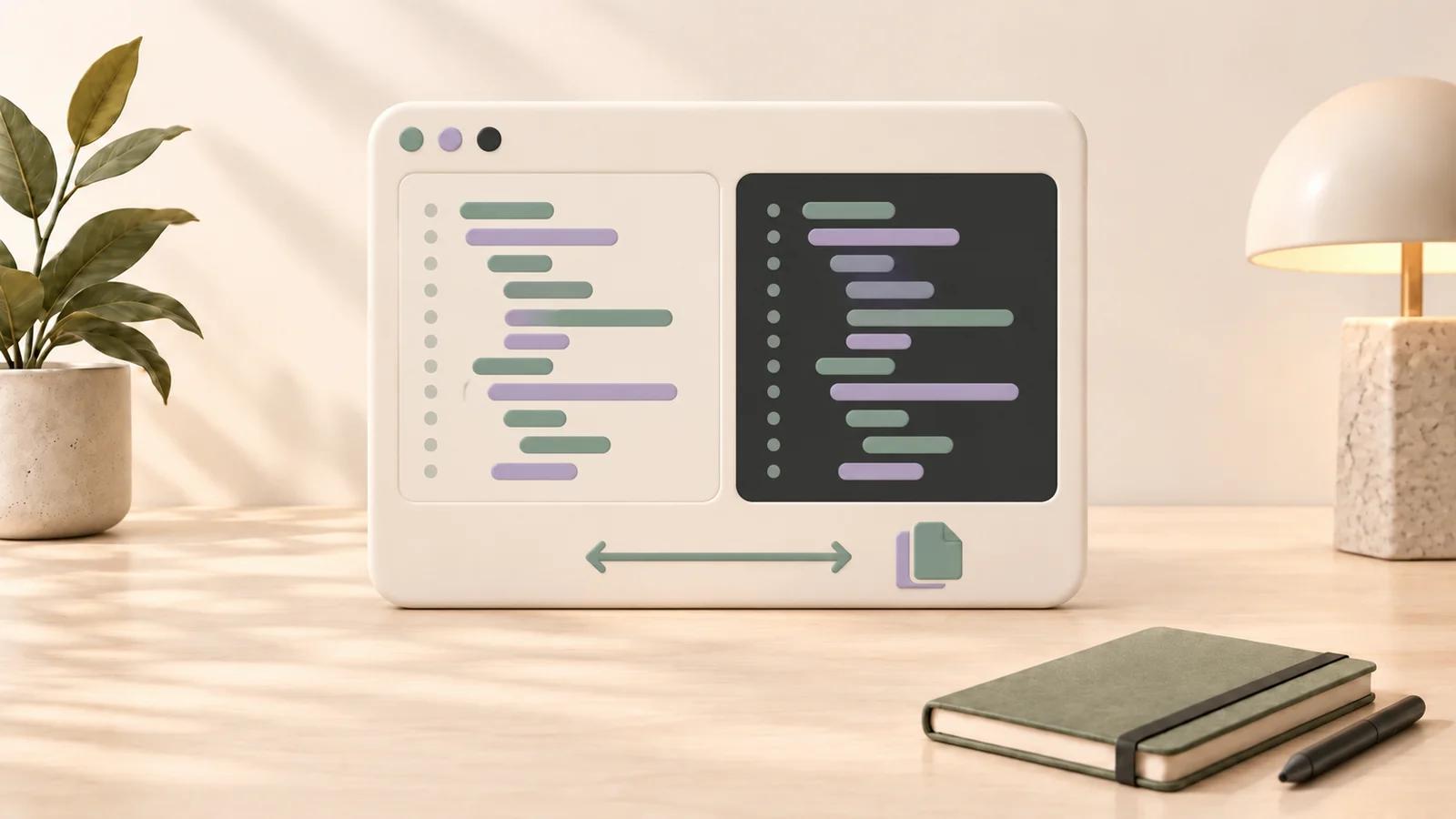
ChatGPT Code Block Readability: 7 Fixes
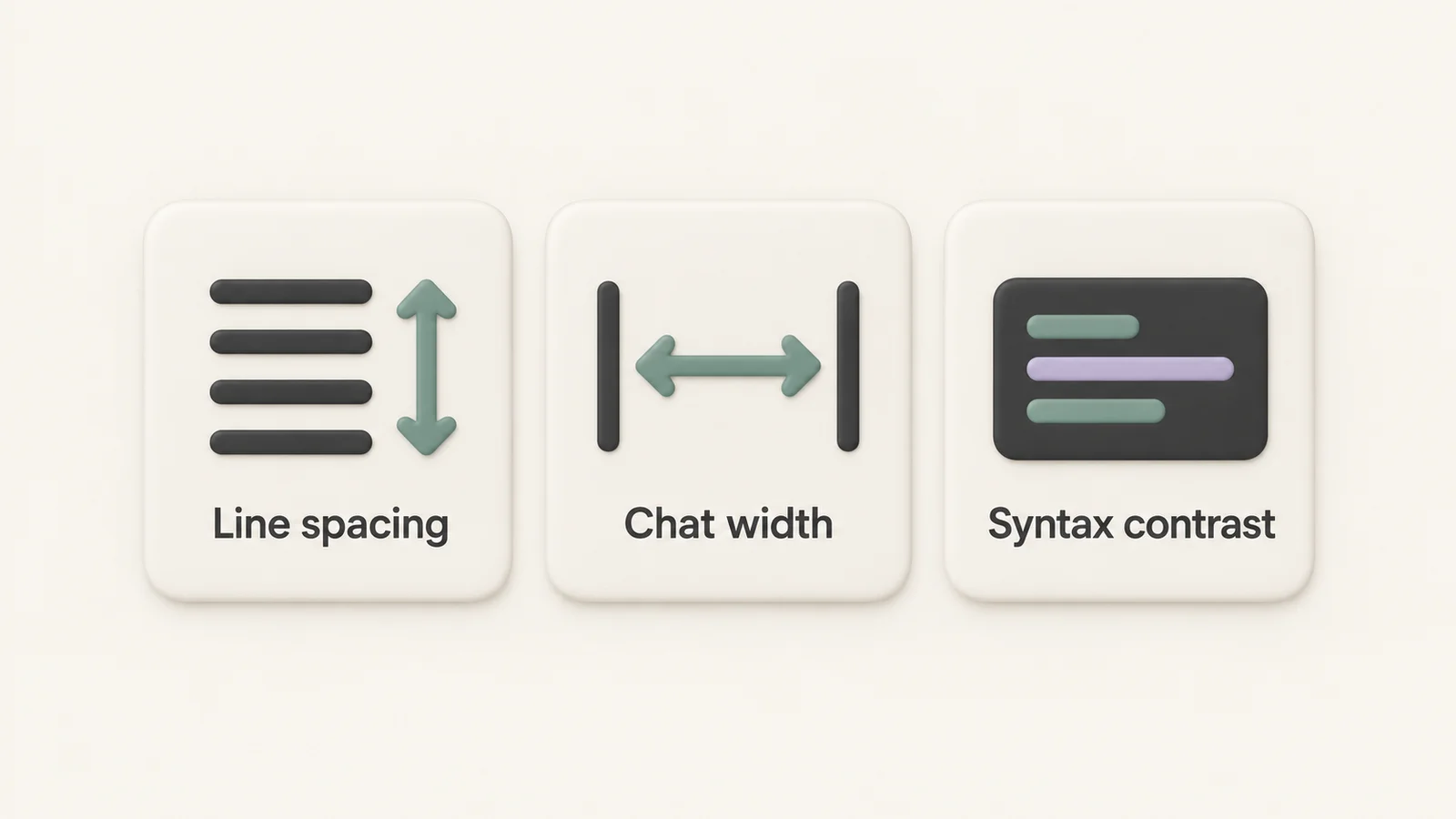
If ChatGPT code feels hard to read, I’d fix 7 things first: font, line spacing, chat width, contrast, long lines, copying, and dark mode. In most cases, 2–3 small changes can cut eye strain fast, especially during long coding sessions.
Here’s the short version:
- Font: Pick a code font that makes
I,l,1,O, and0easier to tell apart - Line spacing: Add more space between lines so code is easier to scan
- Chat width: Use a larger chat layout so long lines break less often
- Contrast: Make text and background easier to separate
- Long lines: Choose between horizontal scrolling and wrapping based on the code
- Copying: Use the built-in copy button for full blocks
- Dark mode: Tune syntax colors so keywords and strings don’t blend together
I’d start with browser zoom if text is just too small. But if the main issue is code layout, styling controls can help more because they change specific parts of the interface instead of the whole page.
A few details stand out:
- StylerGPT lists 1,000+ fonts
- It offers 4 size presets for code text: SM, MD, LG, XL
- It also includes 4 chat width presets: SM, MD, LG, XL
- Code spacing and chat width are listed on paid plans starting at $3.99/month
Quick Comparison
| Fix | Native ChatGPT | Extra control with StylerGPT |
|---|---|---|
| Font family | Fixed by system/browser | 1,000+ font options |
| Text size | Browser zoom | Preset code sizes |
| Line spacing | No direct control | Code spacing controls |
| Chat width | Fixed layout | SM, MD, LG, XL presets |
| Contrast | Light/dark theme only | Separate code block themes |
| Long lines | Mostly horizontal scroll | More room through chat layout |
| Copying | Built-in copy button | Export full chats with code |
| Dark mode | Global toggle | Code-only syntax styling |
Bottom line: I’d use the native tools for the fast fixes, then switch to targeted styling when code blocks still feel cramped, dull, or hard to scan.
1. Choose a More Readable Font for Code Blocks
ChatGPT uses a fixed monospace font pulled from your system or browser. So code readability depends a lot on what font you end up with. The biggest problem is glyph clarity. Characters like I, l, 1, O, and 0 can look way too similar, which makes scanning code slower and more annoying than it should be.
The first fix is the font face itself.
ChatGPT doesn’t let you change the code font family. You can zoom in with your browser, and that does make code larger, but it doesn’t swap the font.
StylerGPT adds font-level control for code blocks, with 1,000+ fonts, size presets, and scope control. That changes the game in a very practical way.
| Feature | ChatGPT Native | StylerGPT |
|---|---|---|
| Font Family | Fixed by OS/browser | 1,000+ Google Font families |
| Text Size | Browser zoom only | 4 size presets (SM, MD, LG, XL) |
| Code Block Styling | Standard syntax highlighting | Dedicated code block themes |
| Scope Control | Page-wide only | Chat messages or full interface |
One small catch: font changes can affect line length and wrapping. So it makes sense to change the font first, then tweak size or spacing. Also, device-level font substitutions can change how code looks, even with the same setup.
2. Increase Line Spacing Inside Code Blocks
Tight line spacing makes code harder to scan. Give each line a bit more breathing room so it stands on its own. That makes debugging faster and puts less strain on your eyes.
StylerGPT includes code block spacing controls on Pro ($3.99/month, billed annually) and Power ($7.49/month, billed annually). Once the lines are easier to tell apart, widen the chat area too, so longer code stays readable without constant scrolling.
3. Widen the Chat Area for Easier Code Scanning
The default layout can feel tight when you're reading code. A wider chat area lets more code fit on each line, so indentation, nesting, and structure are much easier to scan. Once spacing feels better, width is often the next big win.
Browser zoom makes everything bigger. Chat width changes only the conversation area. That means your code stays the same size, but you get less wrapping.
StylerGPT includes SM, MD, LG, and XL chat width presets. If long code lines are the main issue, go with the widest options.
| Layout Preset | Best Use Case | Readability Impact |
|---|---|---|
| SM / MD | Standard prose, research, general chat | Comfortable line length; easier eye movement between lines |
| LG / XL | Coding, data tables, technical documentation | Minimizes line wrapping; keeps table columns aligned |
There is one tradeoff: wide layouts can make prose harder to read. For code, LG or XL usually works best. Then switch back to MD when you're reading long text.
Chat width controls are available on Pro and Power.
If code still feels hard to read, the next fix is contrast.
4. Improve Contrast for Code Text and Backgrounds
Poor contrast makes code harder to scan, especially during long work sessions.
ChatGPT's native light and dark themes give you a decent starting point: neutral backgrounds and default syntax highlighting. For dense code, though, that setup can still feel a bit cramped.
StylerGPT takes it further. It includes dedicated code block syntax themes for both light and dark setups. In plain English, you can change how syntax looks without changing the rest of the interface. It also gives you more control over backgrounds, including colors, gradients, and image overlays with opacity control.
| Feature | Native ChatGPT | StylerGPT |
|---|---|---|
| Code syntax highlighting | Default syntax highlighting | Dedicated light and dark syntax themes |
| Backgrounds | Solid light/dark backgrounds | Colors, gradients, and background images with opacity control |
There’s a catch, though. More contrast isn’t always better. If the colors are too harsh, your screen can start to feel like a spotlight in your face. The goal is simple: make syntax easy to separate at a glance, without turning the palette into a strain.
Once contrast looks clear, long lines usually become the next thing slowing you down.
5. Handle Long Lines With Wrapping or Horizontal Scrolling
Even if contrast is fixed, long code lines can still slow people down. In narrow layouts, they’re harder to scan, often force horizontal scrolling, and can wear out your eyes after a while.
ChatGPT code blocks often rely on horizontal scrolling for long lines. That keeps indentation and original formatting in place, which matters for whitespace-sensitive code like Python and YAML. The downside is pretty simple: horizontal scrolling adds friction and makes the block harder to read at a glance.
The other path is line wrapping. It keeps more code visible inside the viewport, which can make scanning easier. But there’s a catch. Wrapping can throw off indentation and weaken the visual structure of the code.
StylerGPT’s Chat Layout presets - SM, MD, LG, and XL - widen the workspace so long code blocks get more breathing room. That extra width helps cut down on both line wrapping and horizontal scrolling. This option is available on Pro and Power.
| Approach | Best For | Tradeoff |
|---|---|---|
| Horizontal scrolling (native) | Indentation-sensitive code like Python and YAML | Keeps formatting intact, but adds friction |
| Line wrapping | Easier scanning | Can disrupt indentation and structure |
| Wider layout (StylerGPT) | Dense code blocks | Requires Pro or Power |
Once line handling is clean, the next fix is copying code without extra cleanup.
6. Copy Code Blocks Faster and More Cleanly
Once code is easy to read, the next thing that matters is speed. And more than that, clean copying. A sloppy copy step can burn time and lead to paste mistakes.
ChatGPT's built-in copy button is the fastest way to reuse a full code block. One click grabs only the code. If you just need a couple of lines, manual selection still works. But for full blocks, the copy button is the better pick.
If you're saving full conversations, StylerGPT's Chat Export lets you save chats in Markdown, JSON, TXT, PDF, or DOCX. That works well when you want the code and the surrounding context. And if dark mode still feels harsh on your eyes, the next step is adjusting the code colors.
| Method | Speed | Accuracy | Best For |
|---|---|---|---|
| Built-in copy button | Instant | High - raw code only | Reusing entire code blocks immediately |
| Manual text selection | Slower | Lower - risk of stray text | Grabbing specific lines from a large block |
| StylerGPT Chat Export | Fast (bulk) | High - preserves formatting | Archiving code and context for later use |
7. Tune Dark Mode for Code Readability
If code still feels tough to scan, dark mode is the next thing to adjust. It can cut glare, which helps in longer sessions. But there’s a catch: code gets harder to read when syntax colors sit too close together. When keywords, strings, and variables start blending into each other, your eyes have to do more work.
ChatGPT's native dark mode is a global toggle. It dims the full interface and does not let you style code blocks separately.
That’s why code-block-specific styling is often the better fix. StylerGPT uses that approach. Its code block themes let you adjust syntax highlighting without changing the rest of the interface, so keywords, strings, and variables are easier to pick out at a glance during long technical sessions.
Use dark mode in low light and light mode in bright rooms to keep contrast comfortable.
| Feature | ChatGPT Native Dark Mode | StylerGPT Code Block Controls |
|---|---|---|
| Scope | Global interface - all or nothing | Specific to code blocks and syntax |
| Syntax Highlighting Control | Standard syntax only | Dedicated syntax themes for code blocks |
Browser Zoom vs. StylerGPT Controls: A Quick Comparison
Once you’ve handled the fixes above, one choice is still left: browser zoom or targeted interface controls.
Browser zoom scales the entire page. So the comparison is pretty straightforward: full-page scaling versus more exact readability changes.
StylerGPT changes specific parts of the interface without scaling everything else. That’s the core difference here: targeted control versus full-page scaling.
| Feature | Browser Zoom | StylerGPT Controls |
|---|---|---|
| Scope | Global - scales the entire page | Targeted - specific UI elements like code blocks or the chat area |
| Precision | Low - proportional scaling only | High - individual font, color, spacing, and width settings |
| Code Blocks | Scales text and container together | Dedicated code block themes and spacing controls |
| Layout | May cause layout shifts or extra scrolling | Adjustable chat width presets (SM, MD, LG, XL) |
Use zoom when you just need a fast size increase. Use targeted controls when code needs better structure on screen.
A simple way to think about it: start with browser zoom if the text only feels too small. It takes about two seconds and doesn’t need anything extra. But when you’re dealing with dense code review, debugging, or long scripts, StylerGPT’s controls make more sense. You can adjust code readability without changing the rest of the interface.
"The goal is not decoration alone - it is a calmer workspace for long sessions." - StylerGPT
Conclusion
ChatGPT code readability usually gets better with a few small tweaks. Seven focused changes - font choice, line spacing, chat width, contrast, long-line handling, clean copying, and dark mode tuning - deal with most of what makes code blocks hard to read.
Start with the native controls first. Use browser zoom if the text feels too small. Then turn to StylerGPT for font, width, spacing, and code-block styling.
In most cases, a handful of small, targeted changes is all it takes to make ChatGPT code blocks easier on the eyes.
FAQs
Which fix should I try first?
Start by trying a few different fonts. Readability is personal, and what feels easy on the eyes can change based on your comfort level and accessibility needs. With StylerGPT, you can preview each change in real time, which makes it simple to spot what reads best for you.
After that, tweak the chat width, spacing, and code block themes to shape a workspace that feels balanced and easy to use.
When should I use zoom instead of code styling?
Use native browser zoom when you want a fast, site-wide change across the entire interface. It’s the easiest option if you need larger text for accessibility.
Use StylerGPT code styling when your goal is better code readability over time. It upgrades code blocks with dedicated light and dark syntax themes, without changing the layout of the full page.
Is wrapping or horizontal scrolling better for code?
It depends on how you work and what feels easier to read.
Horizontal scrolling keeps each line in its original shape. That matters when line length, logic, and indentation help you follow complex code.
Wrapping keeps you from scrolling side to side. So long lines are often easier to scan, and it's less likely you'll lose your place.
StylerGPT lets you adjust code block themes and layout controls, so you can set things up in a way that makes code easier on the eyes.