

ChatGPT History Search: Find Chats by Keyword
I use ChatGPT’s built-in history search to find saved chats by keyword. Open Search in the sidebar or press Ctrl+K on Windows or Cmd+K on Mac, then enter a word or short phrase you remember. Sidebar search checks saved content in your account or workspace.
My first check when a chat is missing is the account and workspace. Archived chats remain searchable. Deleted chats can’t be restored through search.
For finding and reopening old chats, I start with native search. If I need title-only searches, message-level filters, or links to matching messages, I use StylerGPT Smart Search. It searches chats that have synced and is available on Power or during the 7-day Power trial.
Video Walkthrough
Search ChatGPT History in Your Browser
Click Search in the sidebar or press Ctrl+K on Windows or Cmd+K on Mac. Then enter a word or phrase you remember.
Choose Words or Phrases You Remember
Try an uncommon project name, technical term, or filename. ChatGPT search checks chat titles and message text, including your prompts and ChatGPT’s replies.
If no results appear, use a shorter phrase, another term you remember, or a different spelling. Start with the wording you remember from the conversation.
Open the Conversation and Locate the Message
Select a matching result to open the conversation. If it opens elsewhere in the chat, scan the conversation or press Ctrl+F on Windows or Cmd+F on Mac to find the term on the loaded page.
Troubleshoot Missing Search Results
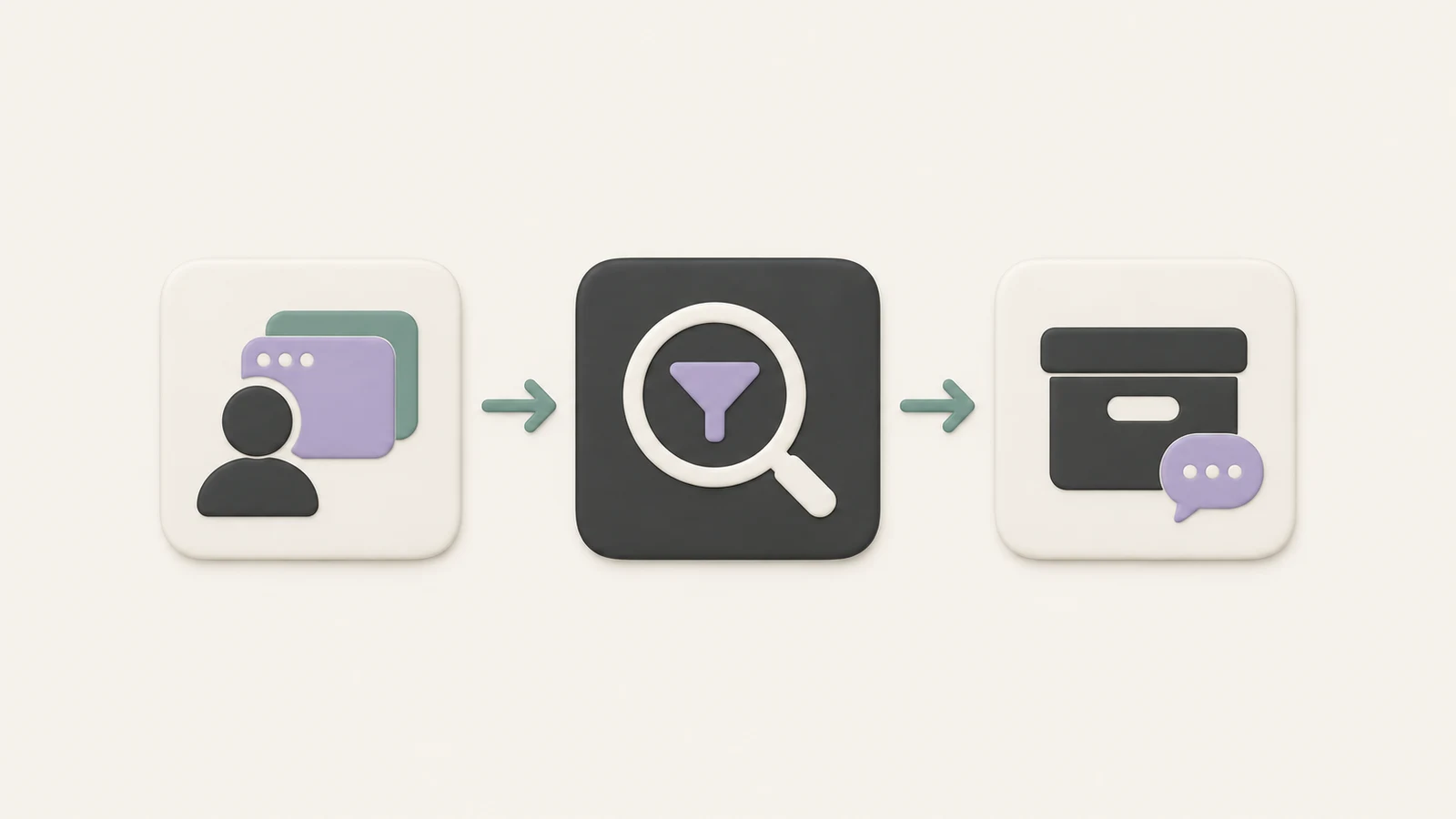
If a search doesn’t find a chat, check your account, workspace, and filters. Select Chats or All if those filters are available. If the chat still doesn’t appear, check your archived chats.
Check Archived and Deleted Chats
Archived chats stay searchable even though they’re hidden from the regular sidebar. To find them directly, open Settings → Data controls → Archived chats. If your interface shows Manage, open it and select Unarchive to move a chat back to your regular history. See OpenAI’s guide to archiving and deleting chats.
| Chat status | Visible in the regular sidebar? | Searchable? | Next step |
|---|---|---|---|
| Older chat omitted from the recent chats list | Sometimes | Yes, if still saved to history | Search for a remembered word or phrase |
| Archived chat | No | Yes | Search for it or open Archived chats in Settings |
| Deleted chat | No | No | ChatGPT search cannot recover it |
Check What Search Can Find
Try different words from the chat title or messages. New conversations may take a few minutes to appear. Temporary Chats don’t appear in regular history. If a chat was locked, check Projects → Locked chats.
OpenAI’s search documentation gives troubleshooting steps for missing results. A missing result alone doesn’t establish that a chat was deleted.
When to Use StylerGPT Smart Search
Start with native search. Smart Search adds message-level filters, title-only searches, and exports of search results from synced chats.
Compare Native Search and Smart Search
When native search returns too many results, Smart Search lets you search your questions, ChatGPT’s answers, or conversation titles. You can match whole words, include or exclude terms, and filter by archive status or conversation update date. Highlighted excerpts give you context before you open a match.
| Capability | ChatGPT native search | StylerGPT Smart Search |
|---|---|---|
| Title and message matching | Yes | Yes, within synced chats |
| Filters | Content filters where available | Role, update date, archive status, whole words, titles only, include or exclude terms |
| Highlighted excerpts | Not documented by OpenAI | Yes |
| Open a result | Opens the conversation | Can jump to the matching message |
| Setup | Built into ChatGPT | Enable Chat archive and complete the initial sync |
| Browser requirements | Available in ChatGPT on the web | Chrome, Edge, or Firefox extension |
| Plan availability | All ChatGPT plans | Power or the 7-day Power trial |
Check Which Chats Have Synced
In Advanced, enable Chat archive and let the initial sync finish. If results seem incomplete, check the sync status, signed-in account, and active filters. Smart Search only searches chats that have synced.
Date filters use the conversation’s update date. Turning off Chat archive stops synchronization and disables Smart Search. See the guide to search and exports for setup and export steps.
Check Browser Support and Plans
StylerGPT provides privacy-first tools that work in your browser. Smart Search is available in Chrome, Edge, and Firefox on Power or during the 7-day Power trial. Each browser or device needs its own initial sync.
Start With Native Search
Enter an unusual word or short phrase from the chat. If the conversation doesn’t show up, check your account, workspace, and archived chats. Use Smart Search when you need to narrow the results or jump to a matching message.
FAQs
How can I find a chat if I forget its wording?
Try a distinctive word you remember from the title, your question, or ChatGPT’s reply. If your results are too broad, enable Chat archive in StylerGPT, wait for the initial sync, and open Smart Search with Ctrl+K or Cmd+K. Use the highlighted excerpts to choose a result and jump to the matching message.
How do I narrow down too many search results?
In Smart Search, filter by message role or conversation update date. Select More filters to include or exclude words or phrases, match whole words, or limit your search to conversation titles.
Why might search results differ between browsers?
Smart Search only searches conversations that have synced in that browser. If you use multiple browsers or computers, enable Chat archive and let the initial sync finish in each one.
Sources
Official references used to support the product details and factual claims in this article.