

Ultimate Guide to StylerGPT Local Search and Exports
When I want to find old ChatGPT work and save a useful conversation, I use two tools: Smart Search to locate the right messages and Chat Export to create a file I can keep, share, or edit.
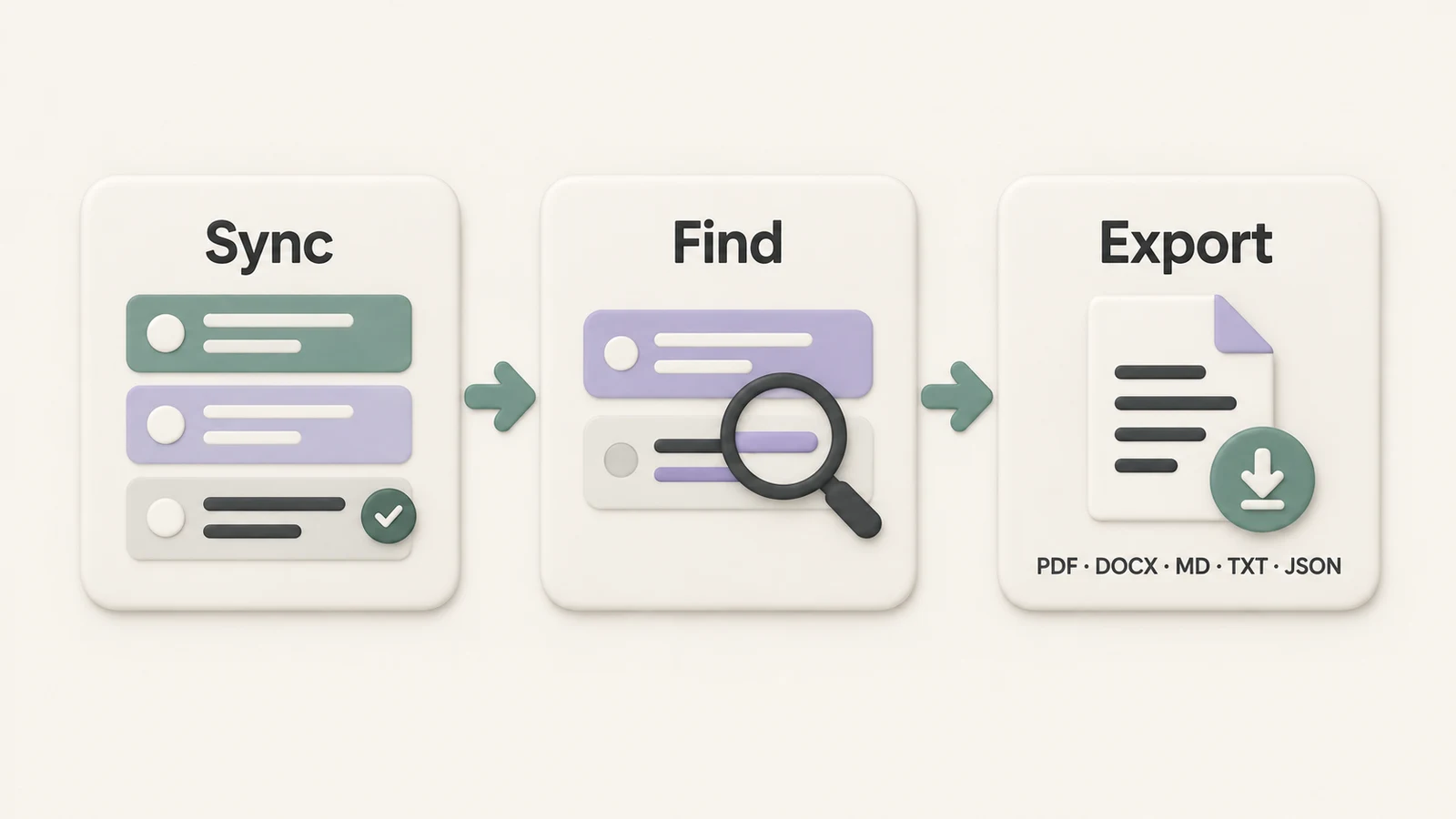
I focus on three things first: finish the initial chat synchronization, check which tools my plan includes, and choose an export format for the task. StylerGPT provides privacy-first tools that work in your browser.
Here is the short version:
- Smart Search requires Power or an active Power trial.
- Chat Export works on all plans: Free includes 3 exports per month, Pro includes 5, and Power includes unlimited exports.
- Conversation exports support PDF, DOCX, Markdown, TXT, and JSON.
- Smart Search result exports support JSON, Markdown, and TXT, separately from the Chat Export allowance.
- Chat Folders includes 3 folders on Free, 5 on Pro, and unlimited folders on Power. Main folders and subfolders count toward the same total.
- New eligible users can try Power features for 7 days. See current plans and allowances for details.
Folder assignments, saved prompts, and settings do not automatically move between browsers or devices. I save important exported files somewhere I can find them again, rather than treating the browser workspace as my only backup.
Quick Comparison
| Plan | Monthly price | Folders | Saved prompts | Chat exports | Smart Search | Prompt Guard |
|---|---|---|---|---|---|---|
| Free | $0 | 3 | 3 | 3/month | No | No |
| Pro | $4.99 | 5 | 5 | 5/month | No | No |
| Power | $9.99 | Unlimited | Unlimited | Unlimited | Yes | Yes |
These are monthly subscription prices; other billing options are listed on the pricing page. Smart Search needs Chat archive enabled and the first synchronization completed. Chat Export lets me choose all messages or only assistant responses.
For files, I choose PDF for sharing, DOCX for editing, Markdown or TXT for lightweight notes, and JSON for structured reuse.
Set Up StylerGPT for Search and Daily Use
Install the extension and find the tools
Start with the StylerGPT download page and choose your browser. StylerGPT supports Chrome, Edge, and Firefox. Compatible Chromium browsers use the Chrome Web Store version.
After installation, pin the extension icon to the browser toolbar. Open chatgpt.com, then click the StylerGPT icon to open the side panel. The Toolbox contains controls for tools such as Prompt Manager, Smart Search, Prompt History, and Chat Export. Chat Folders appears in ChatGPT's sidebar when enabled.
There is no separate StylerGPT account setup for getting started. If you need installation help, follow the setup guide.
Enable Chat archive and let synchronization finish
With Power or an active trial, open Advanced in the side panel settings and enable Chat archive. Let the initial synchronization finish before using Smart Search, and enable Smart Search in Toolbox if needed.
The archive shows initial progress and an estimated time remaining. A large chat history can take time, and recent changes may not appear immediately. Temporary pauses can occur while ChatGPT limits requests; already synchronized conversations remain available during a temporary pause.
Each browser setup needs its own synchronization. Moving to another computer does not bring over an existing search index or folder assignments automatically.
Chat archive is different from archiving a conversation in ChatGPT. One supports search and management; the other changes a conversation's active or archived status.
Know what happens when synchronization stops
Turning off Chat archive stops synchronization and makes Smart Search, Image Gallery, and Manage Folders unavailable. It keeps the downloaded chats, gallery favorites, your ChatGPT conversations, and folder assignments. Turning it back on resumes synchronization from the saved archive.
If you only want to return to ChatGPT's native search, disable Smart Search in Toolbox. That leaves archive synchronization running. See the FAQ for the full settings behavior.
Search and Organize Your ChatGPT Work
Use filters, whole-word matching, and date ranges
After synchronization, open sidebar search or press Ctrl+K on Windows or Cmd+K on Mac. Smart Search searches titles and message text across active and archived conversations.
Start with a distinctive project name, phrase, or internal code. Then narrow the results with:
- Message role, such as user or assistant.
- Conversation update date.
- Active or archived conversation status.
- Whole-word matching.
- Included or excluded search terms.
Results highlight matching text and let you jump to the relevant message. If the result set is too broad, add a more specific term or a date filter before opening multiple chats.
Pair search with folders and saved prompts
Finding an old chat is useful; filing it makes the next search easier. Put valuable conversations into a project or topic folder. On Free, the 3-folder allowance can mean one main folder and two subfolders; Pro has 5 total, while Power has unlimited folders.
Manage Folders helps browse and organize synchronized conversations. In search results, folder assignment follows Chat Folders limits; archiving and deleting require Bulk Actions access.
For titles, I use something like 2026-09-19 Project Brief. A specific subject and date are easier to scan than a title such as “ideas.” Relevant terms in the messages also help search find the conversation.
When a prompt works well, save it in Prompt Manager and use the // trigger in the composer to retrieve it. Prompt History recalls recent inputs with Ctrl/Cmd+Up and Ctrl/Cmd+Down.
| Tool | What it does | How to access it |
|---|---|---|
| Smart Search | Finds matches in titles and messages | Sidebar search or Ctrl/Cmd+K |
| Chat Folders | Organizes conversations by project or topic | ChatGPT sidebar and folder controls |
| Prompt Manager | Saves reusable prompts | Prompt Manager control or // in the composer |
| Prompt History | Recalls previous inputs | Ctrl/Cmd+Up and Ctrl/Cmd+Down |
Keep titles and cleanup routines consistent
Rename useful chats while the subject is still fresh. Include enough context to recognize the conversation weeks later, without turning the title into a full paragraph.
If you no longer need an active chat, archive it to reduce sidebar clutter. Archiving does not remove it from Smart Search when archived conversations are included. Delete a conversation only when you no longer need it, and save an export first if the content matters.
Power users can use Bulk Actions to manage multiple conversations together. Review the selection before archiving or deleting a batch.
Export Conversations in the Right Format
Export the current chat
Open the conversation, then open Chat Export and choose whether to include all messages or only assistant responses. Select the format that matches what you plan to do with the file.
| Format | Best use case | Editing after export | Typical file size |
|---|---|---|---|
| Sharing and final archiving | Limited | Medium | |
| DOCX | Editing in Word or Google Docs | Easy | Medium |
| Markdown | Technical documentation and reusable notes | Easy | Small |
| TXT | Plain notes and lightweight storage | Easy | Very small |
| JSON | Structured archiving and analysis | With suitable tools | Small |
PDF suits a readable document for sharing. DOCX is useful when I expect to revise the content. Markdown keeps lightweight structure for documentation, while TXT is the simplest text option. JSON suits scripts and other tools that work with structured data. Actual file sizes depend on the conversation and included content.
Understand the monthly export allowance
Free includes 3 Chat Export uses per month, and Pro includes 5 across all five formats. Power has unlimited exports. Free and Pro counters reset on the first day of the next local calendar month.
Exporting all messages or only assistant responses counts as one export. Exporting the same conversation again, including in a different format, uses another allowance.
Opening the tool uses nothing. An export counts when the generated file is handed to the browser. Extension errors or cancellations before that point do not count; canceling the browser's Save As dialog afterward does not restore the use.
Export Smart Search Results Separately
If I need findings from several conversations, I start with Smart Search rather than exporting each chat individually.
Smart Search can export selected chats or matching messages with their following message as JSON, Markdown, or TXT. These result exports are included with Power and the active Power trial, with no monthly search-export allowance. They do not use the separate Chat Export counter.
| Feature | Chat Export | Smart Search export |
|---|---|---|
| Scope | Current conversation, all messages or assistant responses | Selected chats or matching messages with their following message |
| Formats | PDF, DOCX, Markdown, TXT, JSON | JSON, Markdown, TXT |
| Allowance | Monthly limit on Free and Pro; unlimited on Power | Included with Power or an active trial; separate from Chat Export |
| Useful for | Saving a conversation as a document | Collecting related findings across conversations |
I check the result selection before exporting. A filtered collection can be more convenient for analysis, but I keep the source conversations available when surrounding context matters.
Build a repeatable file-saving workflow
Use a folder structure and naming pattern you can maintain. For example:
- Folder:
Work/Clients/2026/09 - Research folder:
Research/2026-09-19 Topic Name - Editable draft:
ProjectName_Draft_v1.docx - Final record:
2026-09-19_BudgetReview.pdf
If I export a revised conversation later, I add a version marker such as v2 so I do not overwrite the earlier file. I also open the saved file once to check that it contains the material I intended to keep.
Privacy and Practical Workspace Limits
StylerGPT offers privacy-first tools that work in your browser. For the full policy, read the Privacy Policy.
The practical point for this workflow is continuity: folder assignments, saved prompts, and other workspace settings do not automatically sync across devices. Clearing extension storage or removing the extension can remove saved workspace data. Keep important exported files and original research materials in your normal backup system.
An exported conversation is a document you can keep; it is not a transferable backup of your entire StylerGPT workspace or folder tree.
Use Prompt Guard before sending sensitive text
Prompt Guard is an optional Power feature, disabled by default. When enabled, it checks outgoing prompt text and can pause sending when it detects potentially sensitive information, giving you a chance to edit or explicitly continue.
It checks text, not files, images, OCR, voice, or connector uploads. I still review attachments and any information I choose to share. See Prompt Guard for the supported workflow.
A Daily Workflow to Keep
Let the first synchronization finish, search with a distinctive phrase, file useful conversations, and export them in the format you need. Clear titles and consistent filenames make both the next search and the next file handoff easier.
FAQs
How long does the first sync usually take?
There is no fixed completion time. It depends on the size of the chat history and any temporary request limits. Use the progress indicator and estimated time remaining rather than assuming synchronization will finish within a few minutes. Other StylerGPT tools can be used while the archive is being prepared.
What happens if I clear my browser data?
It depends on what you clear. Removing the extension or clearing its saved storage can remove settings, saved prompts, folder assignments, history, and downloaded archive data. Do not assume clearing website cookies alone has the same effect. Important exported files saved separately remain in their chosen location unless you delete them too.
Before clearing storage, save important conversations and prompts using the available export options. A conversation export does not restore the folder tree or the full workspace.
Which export format should I use?
Choose PDF for a document you want to share, DOCX for editing in a word processor, Markdown or TXT for lightweight notes, and JSON for structured reuse. For Smart Search result sets, choose JSON, Markdown, or TXT.
Do Smart Search exports use my Chat Export allowance?
No. Smart Search result exports are separate from Chat Export. Smart Search requires Power or an active Power trial; Free and Pro conversation-export allowances apply to Chat Export itself.
Sources
Official references used to support the product details and factual claims in this article.