

ChatGPT Privacy: Prompt Guard Q&A
I can use Prompt Guard to check typed or pasted ChatGPT text before sending it. It is part of StylerGPT, a desktop browser extension with privacy-first tools that work in your browser. Prompt Guard is off by default and requires Power access or an active 7-day Power trial. StylerGPT supports Chrome, Edge, and Firefox.
The check runs when I submit a message, covering up to 100,000 characters per check. If it flags possible sensitive information, I can edit my draft or choose to proceed. It does not remove sensitive text for me.
My main caution: a pre-send check is not a privacy guarantee. Files, images, voice input, and connector uploads are outside its scan coverage. I still need to decide what is appropriate to share with ChatGPT.
I’d use Prompt Guard as an extra review step alongside my own judgment and ChatGPT’s native privacy controls. I don’t need StylerGPT to change model-training settings, manage memory, or use Temporary Chat.
What Prompt Guard Checks
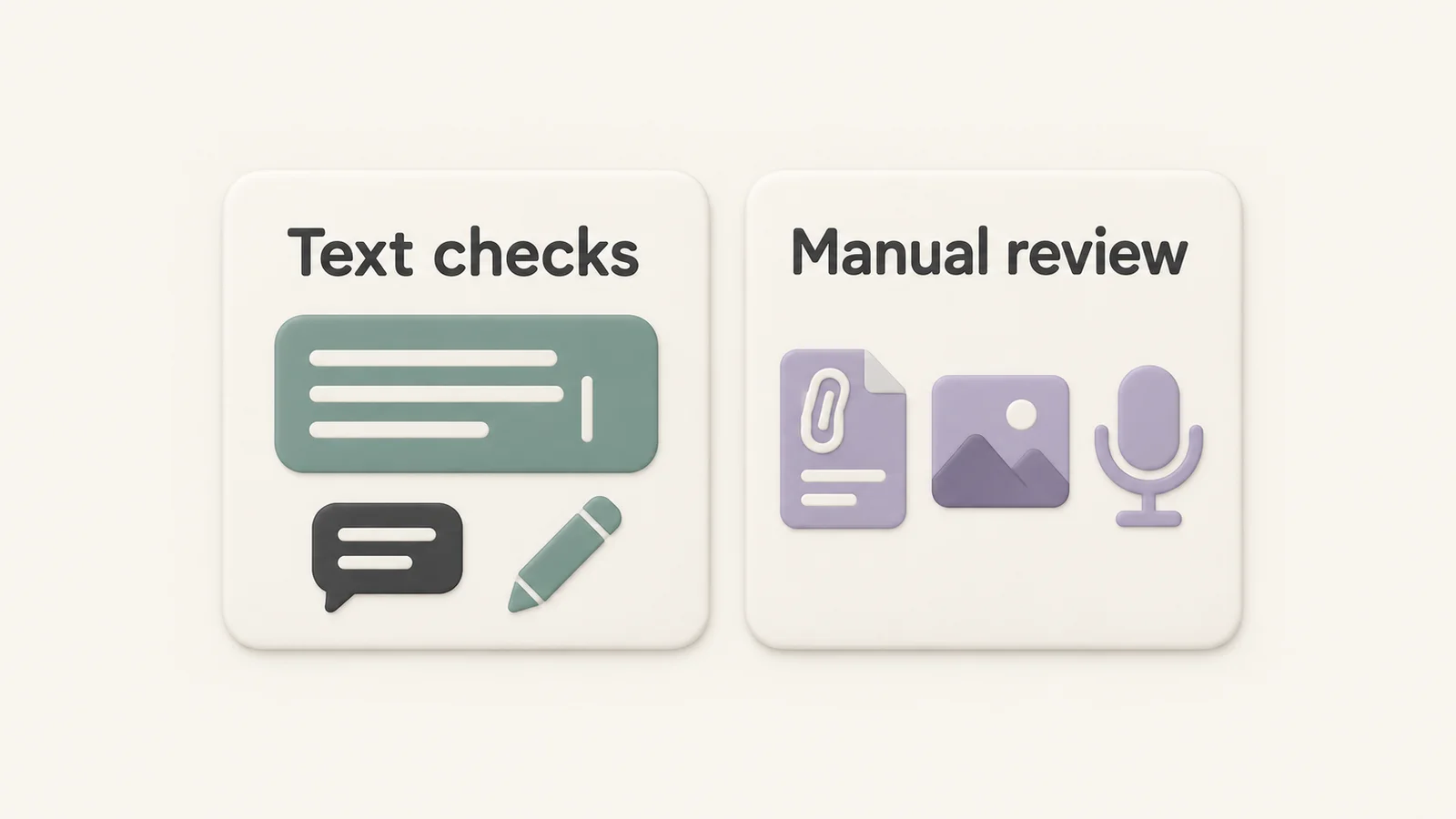
Prompt Guard looks for supported patterns such as emails, phone numbers, payment cards, IBANs, tax IDs, API keys, passwords, secrets, and private keys. It can miss edge cases or flag harmless text.
Here’s what it checks and what needs a separate review:
| Input type | Checked by Prompt Guard? |
|---|---|
| Text in ChatGPT’s native composer | Yes |
| Inline edit-and-resend text | Yes |
| Prompt Enhancer submissions | Yes |
| Files and attachments | No |
| Images and OCR text | No |
| Voice messages | No |
| Connector uploads | No |
Each check covers up to 100,000 characters. If a check cannot finish, review the text manually before deciding what to do next.
When Pre-Send Checks Run
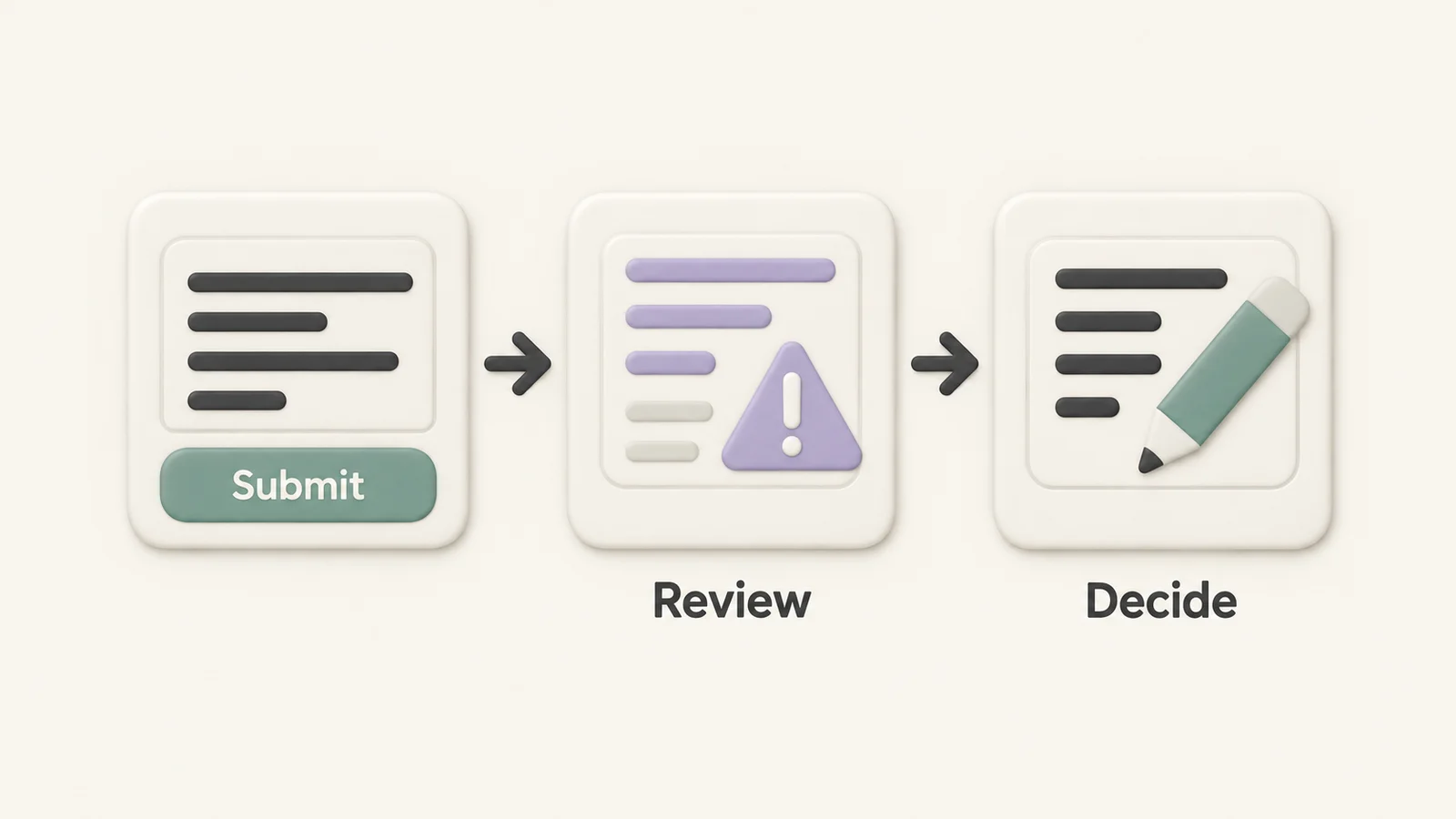
With the feature enabled in StylerGPT’s Toolbox, Prompt Guard checks your message when you submit it, rather than while you type. If it detects a sensitive value, it pauses sending and opens a review window with the flagged categories and excerpts.
Choose Edit message to revise your draft or Send anyway to proceed. Prompt Guard does not automatically redact text. Closing the window or pressing Escape returns you to editing.
If the check fails or is incomplete, the dialog displays Prompt could not be checked and offers three options:
- Edit message: Return to your draft and change what you plan to share.
- Try again: Run another check.
- Send without checking: Continue only after deciding that sharing the message is appropriate.
A completed check with no findings lets the message continue without a review window. That does not prove that the text is safe to share.
Reviewing Warnings and Sensitive Information
When Prompt Guard stops a send, review the warning before deciding whether to edit the message or proceed.
A warning is a prompt to review, not a verdict. Check the flagged text in context. Choose Edit message to revise your draft. Use Send anyway only when sharing the information is intentional, needed, and permitted.
Remove contact details, financial data, confidential workplace material, and authentication information that ChatGPT doesn’t need, even if nothing flags them.
Do not bypass a warning to send a secret. Remove passwords, API tokens, recovery codes, and private keys. If a credential has already been exposed, revoke or rotate it through the service that issued it.
For example, a request to summarize a customer email may not need the customer’s phone number or full address. Replace those details with placeholders before sending, and keep only the context needed for the task.
False Warnings and Missed Detections
For a possible false flag, check whether the value is real, sensitive, and needed. A fictional example or public contact address may be appropriate in one context and unnecessary in another.
No warning does not prove safety. A draft can contain confidential information without matching a supported pattern. Unsupported inputs need their own review, including attachments and information visible inside images.
If a warning seems wrong or incomplete, check both what it flagged and what it may have missed. Your final decision should account for the whole message and any material attached to it.
What a Pre-Send Check Can and Cannot Change
Prompt Guard helps you review a draft before submitting it. It does not change ChatGPT’s privacy settings or make information confidential after you choose to share it.
| Your goal | Practical step |
|---|---|
| Catch supported sensitive details in a draft | Enable Prompt Guard and review its warnings |
| Check files, images, or voice content | Review those inputs yourself before sharing |
| Control model improvement | Review ChatGPT’s Data controls |
| Manage remembered information | Review ChatGPT’s Memory settings and relevant sources |
| Keep a conversation out of history while temporary | Use Temporary Chat and review its available options |
| Keep a copy of useful work | Export it and protect the saved file |
Treat saved exports with the same care as the original conversation, especially when sharing files or saving them in a synced folder. For StylerGPT’s policy, read the Privacy Policy.
Prompt Guard and ChatGPT Privacy Controls
Prompt Guard checks text before you send it. ChatGPT’s privacy settings govern separate choices about your account and conversations. Neither replaces permission to share someone else’s information or your organization’s rules.
Model improvement
For personal accounts with this control available, open Settings → Data controls and turn off Improve the model for everyone. New conversations will not be used to train OpenAI models, but existing chats remain in history. See OpenAI’s data controls guide.
Memory
Memory has separate controls under Settings → Personalization → Memory. Deleting a chat alone does not necessarily delete a saved memory. To remove remembered information, review the memory controls and any chats, files, or connected sources containing it. Available controls vary by account and workspace; follow OpenAI’s memory guide for your setup.
Temporary Chat
While a conversation remains temporary, it stays out of history, does not create or update memories, and is not used to improve OpenAI models. It can use existing memories if personalized; review the personalization choice before starting. Saving it converts it into a regular chat. OpenAI may keep a copy for up to 30 days for safety. See the Temporary Chat guide.
Exporting your data
Need a copy before removing content? Eligible personal accounts can request a data export through ChatGPT settings or the OpenAI Privacy Portal. An export gives you a copy; it does not delete the original information. In a managed workspace, check available options with your administrator.
Before You Send: Privacy Checklist
Before sending sensitive text, take a moment to check these details:
- Turn on Prompt Guard. If you have Power access or an active 7-day Power trial, open StylerGPT’s Toolbox and enable Prompt Guard. It starts turned off.
- Check the destination and scan coverage. Confirm the account, workspace, conversation, or custom GPT. Review files, images, voice content, and other inputs that Prompt Guard does not scan.
- Review before proceeding. Use Edit message to remove information you do not need to share. Use Send anyway only when sharing is intentional and permitted.
- Check the whole draft yourself. Look for credentials, personal details, and confidential business information. Prompt Guard does not redact automatically, and no warning is not a guarantee.
- Choose the right ChatGPT settings. Review model improvement, memory, and Temporary Chat separately. Follow any workspace policies that apply to your work.
FAQs
Is Prompt Guard enabled automatically?
No. It starts turned off. With Power access or an active 7-day Power trial, open StylerGPT’s Toolbox and enable Prompt Guard.
Does Prompt Guard remove sensitive text?
No. It pauses supported submissions when it finds possible sensitive information and lets you review the findings. Choose Edit message to change the draft yourself.
Does it check attachments, images, or voice messages?
No. It checks supported outgoing text, including the native composer, inline edits, and Prompt Enhancer submissions. Review attachments, images, voice content, and connector uploads separately.
What if my draft cannot be checked?
The Prompt could not be checked dialog offers Edit message, Try again, and Send without checking. Review the draft before choosing. The current text limit is 100,000 characters per check.
Can Prompt Guard change ChatGPT’s memory or training settings?
No. Manage those choices in ChatGPT’s own settings. Prompt Guard adds a review step before sending supported text.
Related guides
Sources
Official references used to support the product details and factual claims in this article.