

ChatGPT Projects vs. Local Research Chat Folders
I use ChatGPT Projects to keep research chats with their sources and instructions; I use StylerGPT folders to file chats in a desktop browser. Projects need no extension, while StylerGPT requires Chrome, Edge, or Firefox, and its Smart Search requires the Power plan.
My choice comes down to context versus filing. Projects suit research where later answers need to draw on the same materials. Chat folders suit personal chat organization, but folder membership does not add context to answers.
For occasional filing, StylerGPT's Free tier allows 3 folders. The extension isn't a mobile app, and its folder data doesn't sync across devices. Check the current pricing and allowances before choosing a plan for more folders or search.
If I use both, I first check that my Project chats appear in the extension. I keep source papers and verified notes outside chat history, too: filing a conversation does not move it out of my ChatGPT account.
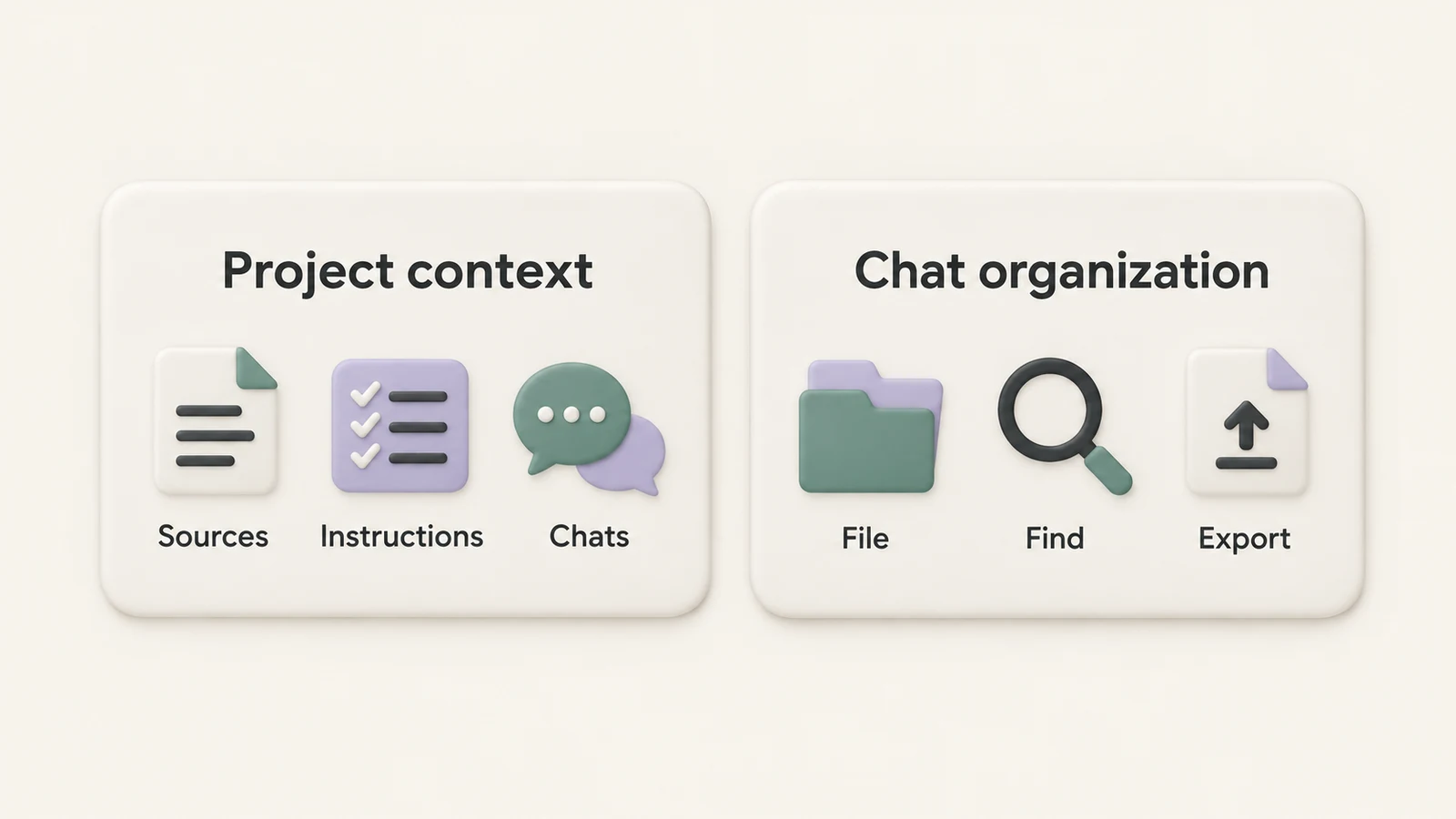
Conceptual illustration of research context and chat organization, not a screenshot of either interface.
Compare ChatGPT Projects and StylerGPT Folders
ChatGPT Projects gives related chats shared context. StylerGPT folders organize conversations. Here's how they compare on search, export, and access.
| Criterion | ChatGPT Projects | StylerGPT folders |
|---|---|---|
| Context | Project instructions, uploaded files, and supported project context | Folder membership does not apply shared sources, instructions, or AI memory |
| Organization | Group related chats and research materials in Projects | Organize chats in folders and nested subfolders |
| Search | ChatGPT's available search tools | Smart Search finds synchronized chat titles and messages |
| Export | Options depend on current ChatGPT feature support | PDF, DOCX, Markdown, TXT, and JSON conversation exports |
| Access | Your ChatGPT account and supported project interface | Chrome, Edge, or Firefox desktop extension |
| Portability | Follow ChatGPT's supported project and account tools | Exported files are portable; folder sync across devices is not supported |
| Collaboration | Follow the sharing controls available in your workspace | Personal folders are not shared team Projects |
Projects: Instructions, Sources, and Memory
A Project keeps related chats, files, instructions, and sources together. Use it when research continues over time or several outputs depend on the same material. Project instructions apply across its chats; add or connect the sources you want ChatGPT to use.
Consult OpenAI's Projects guide for the supported interface and available controls. Do not treat project context as a guarantee that every answer will correctly interpret every source. Keep checking important claims against the original papers.
StylerGPT: Folders, Search, and Export
Chat folders help you file conversations by topic. They do not create a shared research knowledge base or change the context supplied to ChatGPT.
Smart Search requires Chat archive synchronization before it can search synchronized chat titles and messages. Complete synchronization, then check that the conversations you need appear in the results.
Chat Export saves conversations as PDF, DOCX, Markdown, TXT, and JSON. Export the conversation when you need a readable copy of the questions, answers, and caveats alongside your research notes.
Plans, Prices, and Feature Limits
First, decide whether you need project context or personal organization. Then check whether the folder limits, search tools, or exports match your workflow.
StylerGPT offers Free, Pro, and Power tiers. New installations include a 7-day Power trial. These are the monthly subscription prices and folder allowances shown on the pricing page:
| Plan | Monthly price, USD | Key limit |
|---|---|---|
| ChatGPT Projects | Check your ChatGPT plan | Project capabilities depend on your account and workspace |
| StylerGPT Free | $0 | 3 folders; no Smart Search |
| StylerGPT Pro | $4.99 | 5 folders; no Smart Search |
| StylerGPT Power | $9.99 | Unlimited folders; Smart Search included |
Subfolders count toward the folder limit. Free allowances remain available after the trial. Annual billing has different effective monthly prices; compare the billing options on the pricing page.
Set Up Your Research Workflow
Keep research context in ChatGPT and personal filing in StylerGPT. Before you start, use the comparison above to decide which tool will handle context, filing, and exports.
Create a Research Project
Follow OpenAI's Projects instructions. Create Coastal Soundscapes, add your source files, and set instructions to extract equipment, timing, and exclusion rules. Use the available project controls to bring in eligible existing chats.
For example, your project instructions could ask ChatGPT to distinguish a paper's reported methods from your own interpretation and identify any missing recording conditions.
Keep synthesis in the Project and chat filing in the folder tree.
Organize and Find Chats in Local Folders
In StylerGPT, create Coastal Soundscapes with Recording Protocols and Site Comparisons subfolders. Give each paper its own chat, starting with its source reference. Save your extraction prompt in Prompt Manager so you can reuse it.
On the Power plan, complete Chat archive synchronization. Then use Smart Search to find terms such as wind noise. Check the results against the source papers before using them for synthesis.
Export chosen conversations as Markdown or DOCX. Include all messages when you need to keep questions and caveats alongside the answers. A conversation export is not a substitute for keeping the original paper.
Use Both Where Compatibility Is Confirmed
Before relying on both tools, check that the same chat appears in the Project and in StylerGPT's Manage Folders view or Smart Search results. Completing synchronization alone does not confirm that a particular chat is available.
Use Projects for context-dependent synthesis and folders for personal filing. Folder assignments and settings do not sync across browsers or devices. Back up verified notes, exports, and source references alongside the original papers in your notebook or file system.
Compare Privacy and Access
StylerGPT provides privacy-first tools that work in your browser. Choose your workflow based on the practical access you need: finding conversations, working on another device, sharing research, or keeping export files.
| Item | ChatGPT Projects | StylerGPT folders and tools |
|---|---|---|
| Research materials | Add the files and sources your related chats need | File conversations without adding shared source context |
| Shared access | Review your Project's available sharing controls | Personal folders are not shared Project folders |
| Exports | Use the export options available in ChatGPT | Save selected conversations in five supported formats |
| Another device | Check the Project in your signed-in ChatGPT account | Folder assignments do not sync across devices |
| Browser reset | Check your account and Project access | Keep important exports before resetting or uninstalling |
Review Permissions and Sharing
Before adding sensitive research to a Project, review ChatGPT's data controls and your workspace's rules. Check the people and sources included in any shared research workflow.
For StylerGPT, review the permissions listed on its download page. Keep shared browser profiles and downloaded research files in mind when choosing who can use the same device. You can read the Privacy Policy for more information.
Check Browser and Device Support
Check native Projects access in the ChatGPT interface you use. StylerGPT supports Chrome, Edge, and Firefox on desktop. Use its FAQ and pricing page to confirm extension activation and plan access.
Folder data does not sync across devices. Before a browser reset or extension uninstall, save important conversations and verified results in your research files.
Find Missing Chats
If a chat disappears, check the ChatGPT conversation first, then its folder assignment.
Start with your ChatGPT account, workspace, Project membership, and archived chats. If the chat appears in ChatGPT but is missing from StylerGPT, check your browser profile, extension status, folder assignment, and Smart Search synchronization. Manage Folders helps you inspect and organize available conversations.
A missing folder entry does not prove the conversation was deleted. Check the original chat before drawing conclusions.
Choose Projects, Folders, or Both
Choose your context tools and filing tools based on the research work you need to do.
| Your main need | Choose | What to check |
|---|---|---|
| Shared sources and instructions | ChatGPT Projects | Confirm which context and sharing controls your account supports |
| Personal filing, saved prompts, and exports | StylerGPT | Check folder and export allowances; Smart Search requires Power |
| Project context plus personal filing | Both | Confirm that the chats you need appear in both tools |
| A self-contained question | Standard chats | Decide whether ongoing project context or filing is useful |
Keep citations, source files, and exports outside chat history. The researcher workflow guide offers more ways to organize reading and synthesis.
Pick the row that matches how you work.
FAQs
How should I back up my local chat folders?
Use StylerGPT's export features to save individual conversations or selected chats as PDF, DOCX, Markdown, TXT, or JSON files. These are conversation exports, not a transferable backup of the folder tree.
The Chat archive supports search and management, but it is not a research backup. Save critical datasets, code, original papers, and verified results in your established research systems. Folder assignments do not sync across devices.
How do Projects handle conflicting research sources?
ChatGPT Projects let you add files and instructions that describe the sources you want to use. Explain which material should take priority and ask ChatGPT to identify disagreements, then verify its conclusions against the original sources.
StylerGPT folders organize chats without applying shared instructions or a knowledge base across conversations. To keep responses consistent outside a Project, add the relevant context or source passages to each new chat.
Can I reorganize chats without losing research context?
StylerGPT lets you group existing chats into folders by research topic without rewriting their messages. Filing a conversation does not create a native ChatGPT Project or apply shared instructions across chats.
Treat changes to native Project membership as a separate action: check the Project's context and instructions when moving chats between Projects.
Sources
Official references used to support the product details and factual claims in this article.