

ChatGPT with Google Drive: File Search Tips
You can cut file-hunting time by being clear about where to look, adding useful details to your request, and keeping file names consistent. Use ChatGPT with Google Drive for four main jobs: find a file, bring its contents into a conversation, pull out details, and compare one version against another.
Here's the short version:
- Connect the Google account that has access to the files you need.
- Check the connection and workspace permissions if a file or shared drive is missing.
- Name the relevant project, folder, or drive in your request.
- Include details such as the owner, date range, file type, and distinctive words.
- Open the returned source and check that it is the right version before summarizing or comparing it.
- Keep one file-naming pattern and reduce unnecessary duplicate copies.
Three useful clues are owner, modified date, and file type. A name like 2026_Q3_Marketing_Strategy_v2 is also easier for you to recognize in a result list than Final_Draft_NEW.
Think of the workflow as connect, narrow, search, verify, reuse. Precise requests help you describe the file you want; they do not guarantee that every connected tool supports the same search filters.
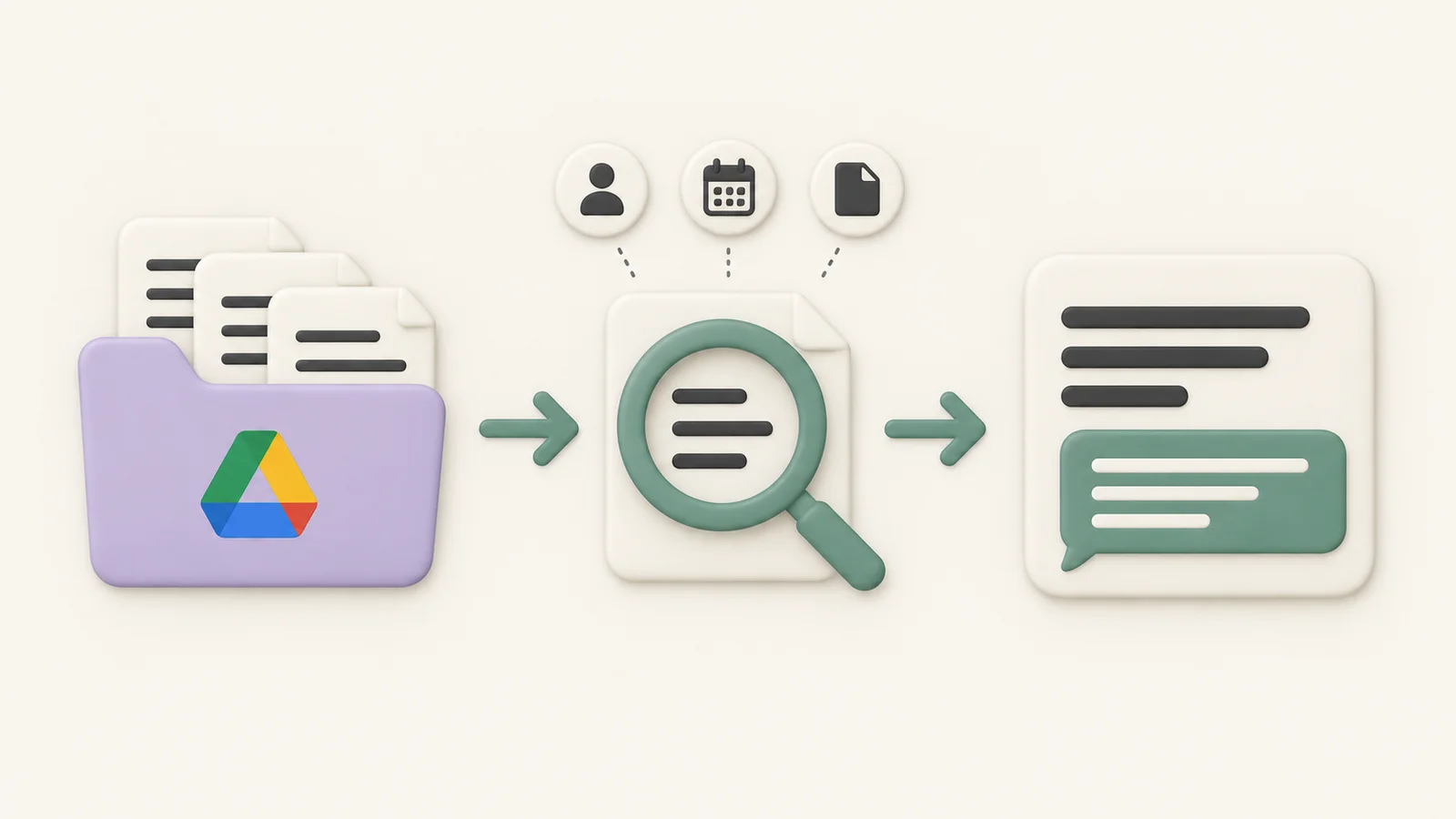
Conceptual illustration of narrowing a search and using a retrieved document in chat. This is not a screenshot of ChatGPT's controls.
How to Set Up Google Drive in ChatGPT
Connect the right Google account
Open the app or plugin directory available in your ChatGPT interface, find Google Drive, and follow the connection prompts. Choose the Google account that can open the documents you need and review the requested access. Start a new chat after installing a plugin. OpenAI's plugin guide explains the installation and connection flow.
If you use separate work and personal Google accounts, check which one you connected before troubleshooting an empty search.
Check workspace access and connection status
Connected services use their own authentication and access controls, and a managed workspace can restrict which tools are available. Confirm that you can open the source file in Drive with the connected account. If the connection asks you to sign in again, complete that step before retrying.
For a missing shared folder or drive, ask your administrator to check access and integration settings. If your connection offers indexing or sync, check its status too. Avoid assuming that every newly edited file becomes searchable within a fixed number of minutes.
Describe the search scope
Tell ChatGPT where the file is likely to be stored: a named project, a folder, My Drive, or a shared drive you can access. If your interface exposes a scope selector, use it. Otherwise, give that context in your prompt and verify the returned source location.
For example:
Search Google Drive for the Q3 marketing strategy in the Marketing project folder. Return candidate file titles and links before summarizing anything.
A folder name in a prompt is a search instruction, not an access restriction. Check which files were actually returned.
How to Search and Retrieve Files Inside ChatGPT
Search with natural-language details
Ask for the outcome you want, naming Google Drive explicitly. Where supported, you can also select the installed plugin with @. Use details you already know to distinguish the target from similar files.
Try requests such as:
- "Find the document updated last week by [owner] that mentions payment terms. Exclude files identified as drafts where possible."
- "Search Google Drive for meeting notes updated between September 1 and September 15, 2026, that mention action items."
- "Find the Q2 sales report owned by [name]. Show candidate titles and source links so I can choose the correct version."
Treat these as requests for the connected search tool. If it cannot apply a criterion or read a metadata field, ask it to say so. Use explicit dates when a phrase such as "last week" could be ambiguous.
Open, summarize, extract, and compare results
Finding a plausible title is the first step. Open the source and check the owner, date, and version. Then ask ChatGPT to use that document, or attach a supported copy if your workflow requires it.
| Action | Example prompt | What to check |
|---|---|---|
| Summarize | "Provide a bulleted summary of the key findings in this PDF. Include source references where available." | The summary uses the intended document |
| Extract | "Create a table of action items, owners, and deadlines from these meeting notes. Mark missing details as not specified." | Owners and dates match the source |
| Compare | "Compare the pricing terms in Version A and Version B. Highlight increases and quote the relevant passages." | Both versions are identified correctly |
Ask for a short summary when you need the gist, a table when you need facts you can scan, and a side-by-side comparison when wording changes matter. If ChatGPT cannot access the full contents of a result, resolve that before relying on its analysis.
Better Search Logic for More Accurate Results
Add the most useful clues first
Start with the topic and one distinguishing detail. If results are crowded, add the expected file type, owner, or modification period. When names overlap, include a distinctive phrase from the title or document.
You do not need to add every possible constraint at once. An incorrect owner or date can hide the file you are trying to find. Relax one condition at a time if the initial request returns nothing useful.
Keep longer search requests easy to scan
Put each criterion on its own line when the request becomes complex:
Search Google Drive for the current Q3 marketing strategy.
Expected owner: [name or email].
Expected type: document.
Updated between: [start date] and [end date].
Look for: campaign budget and launch plan.
Prefer the approved version over drafts. Return titles and links, and tell me which criteria you could verify.
This format helps you see which details are useful and which may be too restrictive. It is a reusable prompt template, not a special Google Drive query syntax.
Structure file names for easier retrieval
Put useful details in a consistent order. For example:
2026_Q3_Marketing_Strategy_v2
This gives you a year, quarter, project topic, and version at a glance. Choose a pattern that fits your team and use it consistently. Avoid names such as Draft_Final_FINAL that leave readers guessing which copy to trust.
Improve the Workflow
Organize Drive so results are easier to recognize
If several copies of the same document have slightly different names, search results become harder to assess. Keep a clear canonical document, use shortcuts where appropriate instead of creating more copies, and archive outdated versions according to your team's retention practices.
Keep folder names descriptive too. A project name shared by the folder and its documents gives you a useful clue to include in future requests. Clear organization supports your own verification even when the search tool cannot enforce every folder or metadata constraint.
Use StylerGPT for longer review sessions
Once you have the right files in a ChatGPT conversation, StylerGPT can help you manage the surrounding work. Adjust chat width for long answers, keep reusable search templates in Prompt Manager, revisit recent prompts through Prompt History, and export useful conversation results.
Smart Search helps you find synced ChatGPT conversations; it does not search your Google Drive files. Features and allowances depend on your StylerGPT plan. See the feature guide for details.
FAQs
Why can't ChatGPT find a file I know is in Google Drive?
Check the connected Google account, whether that account can open the file in Drive, and whether your workspace permits the integration. Review connection or sync status where available, then try the exact file title or provide its source link. Ask ChatGPT to explain any access error.
A missing Drive search result is not, by itself, evidence that you reached a project's file-upload limit. Search access and uploading files are different operations; follow the error shown for the operation you are performing.
What details should I use first to narrow the search?
Start with the topic or file title, then add the file type, owner, and a date range if you know them. Ask for candidate links and check their metadata. The available integration determines which criteria can be applied as actual filters.
How should I name files so they are easier to find?
Use descriptive names with the project or topic and a meaningful date or version. Keep the order consistent across related files. Good names make results easier to recognize, but cannot fix missing permissions or an unavailable connection.
Connect, Narrow, Retrieve, and Reuse
Start with the correct account, describe the file precisely, and verify the returned source. Save the prompts that work for recurring tasks, keep your file names consistent, and make the current version easy to identify.
That gives you a repeatable path from searching for a document to putting its contents to use.
Sources
Official references used to support the product details and factual claims in this article.