
How to Add New Lines in ChatGPT Without Sending
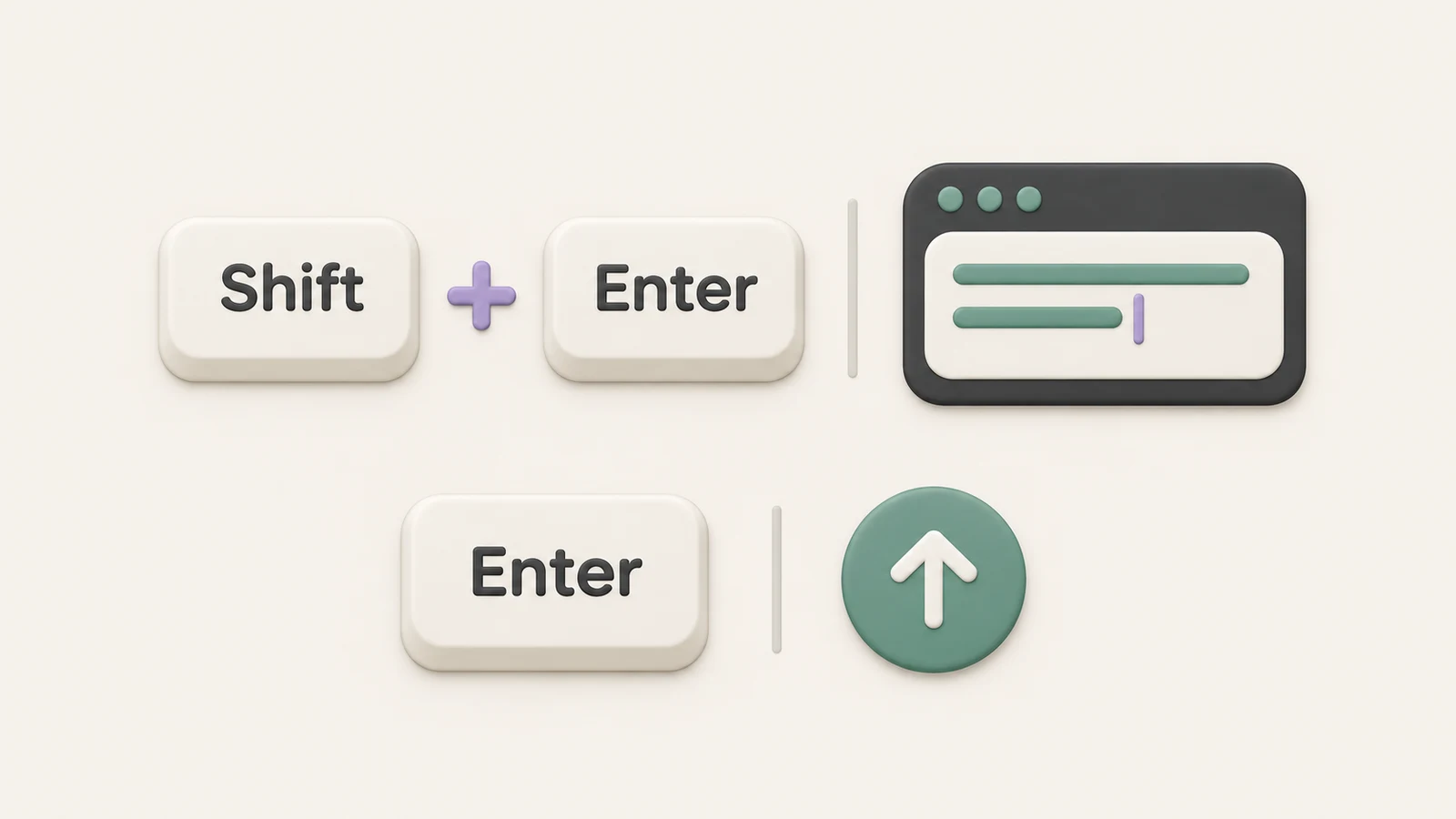
Press Shift+Enter (Shift+Return on a Mac) to add a new line without sending in the ChatGPT desktop web composer. Press it twice to leave a blank line between paragraphs. Press Enter or click Send when your message is ready.
ChatGPT has this shortcut built in. On mobile, use your on-screen keyboard’s line-break key. If you prefer to use Enter for line breaks on desktop, StylerGPT has an optional setting that swaps the two shortcuts.
Write Paragraphs and Lists Without Sending
Start a new line with Shift+Enter
In the message box, type Task: Draft a meeting agenda. Then press Shift+Enter and add the next line. The first line stays in the composer while you write the rest of your prompt.
Separate paragraphs with blank lines
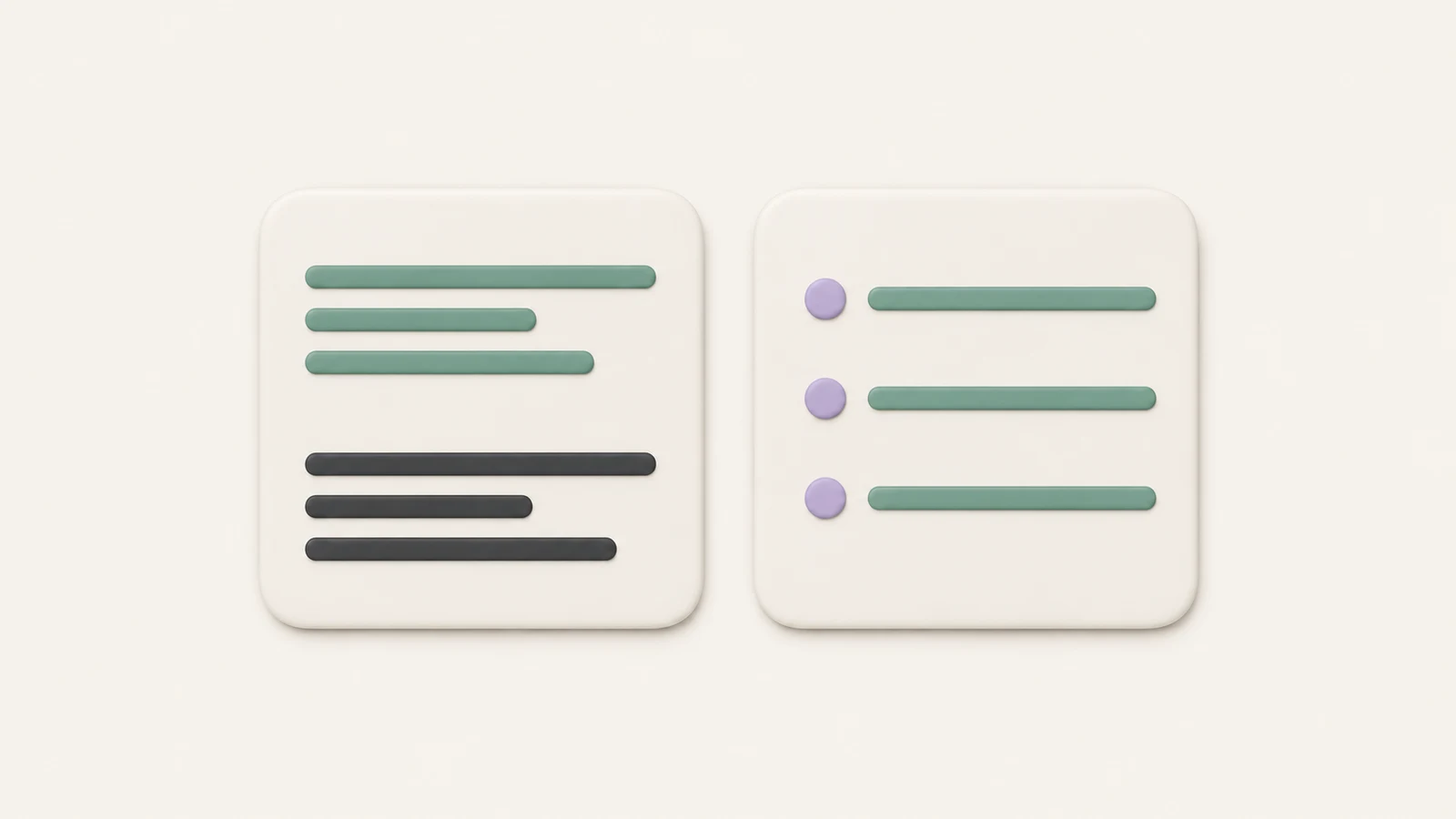
Press Shift+Enter twice between sections to leave a blank line. Here’s a draft with the task, context, and requested format on separate lines:
Task: Draft a meeting agenda.

Context: A 30-minute team planning meeting.

Format: Five bullet points.
For a list, type a hyphen and a space before each item. Press Shift+Enter between items such as - Overview, - Timeline, and - Next steps. When the list is ready, review the full prompt and press Enter or click Send.
How to Add Line Breaks in ChatGPT (Stop Accidentally Sending Messages)
Review Your Prompt Before Sending
Read through the task, context, requirements, and output format. Check for missing words, unclear instructions, and repeated lines. Keep headings, bullets, and numbered steps on separate lines. If you paste code or a table, check that the original lines still make sense in the composer.
Remove passwords, verification codes, payment card numbers, and other sensitive details before sending. OpenAI advises against sharing sensitive information in ChatGPT conversations. For more ways to organize a draft, see our guide to writing clearer ChatGPT prompts.
Check your shortcuts after an accidental send
If Shift+Enter sends your prompt, check for a browser extension or a custom keyboard shortcut that changes how the composer works. Temporarily disable the shortcut override and test Shift+Enter with a short draft in a new desktop web chat.
Optional: Use Enter for New Lines With StylerGPT
Enter for New Lines is a StylerGPT setting for the desktop browser. Once enabled, Enter adds a line break and Shift+Enter sends the prompt. You can still click Send when the draft is ready. The feature page includes an interactive demo and steps to enable the setting.
Recap: Add Line Breaks, Review, and Send
- Press Shift+Enter once for a new line or twice for a blank line in the standard desktop composer.
- Review your task, instructions, and formatting while the whole draft is still in the message box.
- Press Enter or click Send. If you enabled StylerGPT’s shortcut swap, use Shift+Enter to send with the keyboard.
FAQs
How do I add line breaks on mobile?
Use the line-break or Return key on your phone’s on-screen keyboard when it’s available in the ChatGPT composer. StylerGPT’s Enter for New Lines setting is available in supported desktop browsers (Chrome, Edge, and Firefox).
Can I edit a prompt after accidentally sending it?
Use the message’s edit option when available, or send a follow-up correction. Enter for New Lines changes how the composer handles the keys before you send. If you use Prompt Queue, you can edit or remove a queued message while it is still waiting to be sent.
Will pasted text keep its line breaks?
Text pasted into the ChatGPT composer generally keeps its line breaks. Prompt Manager and Prompt History also insert text into the composer, where you can check the formatting and edit the draft before sending.