

How to Write ChatGPT Prompts for Better Answers
I get better ChatGPT answers when I give one clear task, the needed context, and the exact format I want. On desktop, I can reuse prompts with native ChatGPT features like Custom Instructions and Projects, or with a browser extension like StylerGPT. On mobile, browser extension tools usually do not apply.
A prompt does not need to be long. It needs to be specific.
If I write, “help me with this,” ChatGPT has to guess. If I write, “summarize this report for a U.S. small business owner in five bullet points and use only the pasted text,” the answer is usually much closer to what I need. The goal is to reduce guessing.
Here is the structure I use:
- Task: what I want ChatGPT to do
- Context: who it is for and why
- Source limit: what it can and cannot use
- Format: table, bullets, draft, email, or summary
- Rules: tone, length, exclusions, and reading level
Even two or three useful details can change the output. I also avoid putting every request into one message. For larger tasks, I work in rounds: ask for an outline, ask for a draft, then ask for one fix at a time.
Useful follow-ups include:
- “Make this shorter and keep only the main point.”
- “Turn this into a Markdown table.”
- “Explain this for a beginner.”
- “What assumptions did you make?”
- “Which claims should I fact-check first?”
Even polished answers can be wrong. If the topic affects money, health, legal issues, or work decisions, I check important claims against reliable sources.
When I want to reuse prompts, I start with native ChatGPT tools. Custom Instructions work for default preferences across chats. Projects keep related chats and files together. If I save many prompts on desktop and want local folders plus a shortcut inside ChatGPT, a browser extension like StylerGPT is another option. It supports Chrome, Edge, and Firefox and works in the browser rather than the mobile app.
| Option | Best for | Limitation |
|---|---|---|
| Custom Instructions | Repeated guidance across chats | Not a full prompt library |
| Projects | Keeping one project's chats and files together | Less suited to a large prompt collection |
| StylerGPT browser extension | Saving many prompts in local folders on desktop | Not a native mobile app feature |
How to Build a Strong Prompt Step by Step
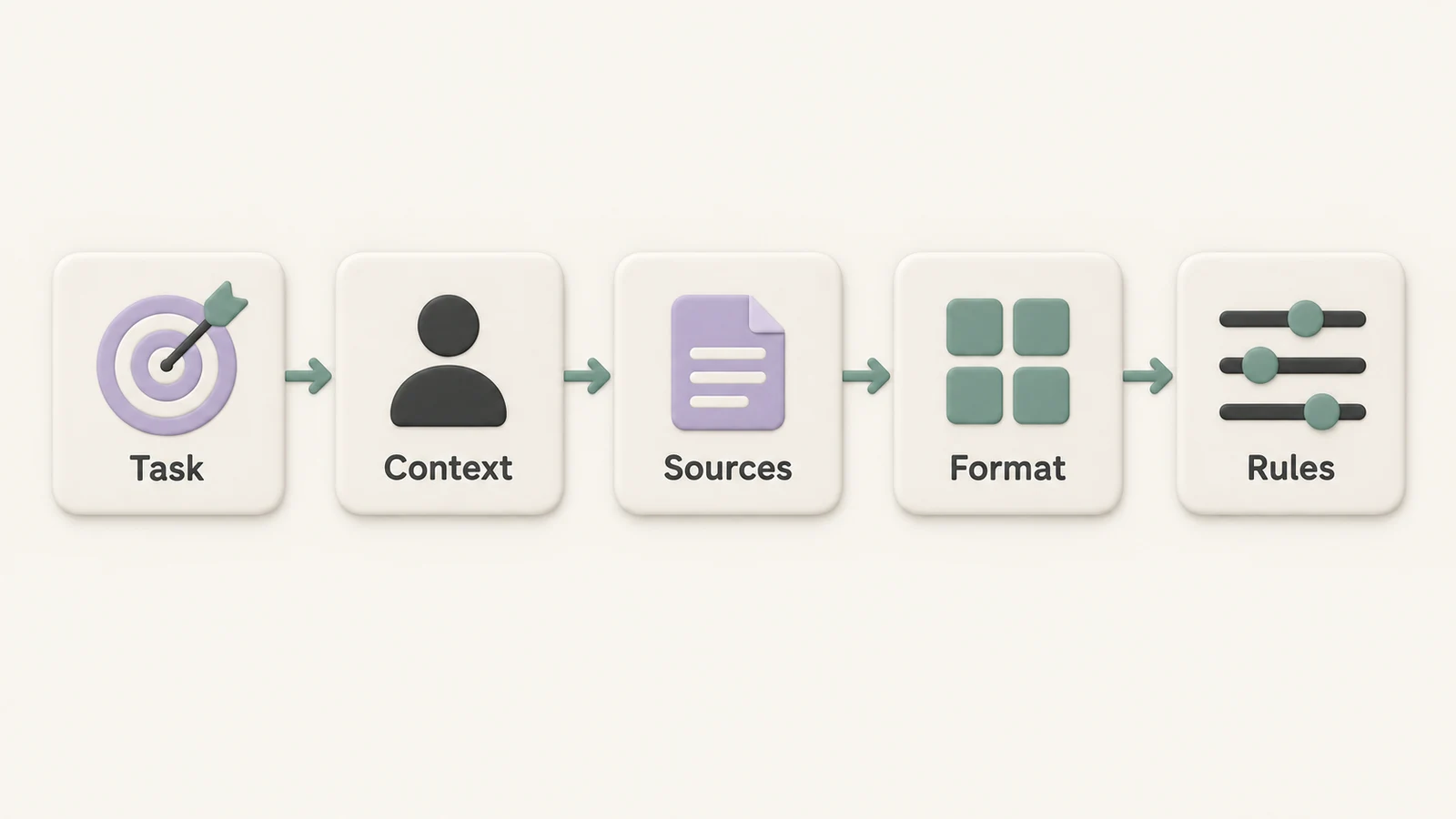
The main idea is simple: put the parts of a prompt in a clear order.
Write the task in one clear sentence
Start with a sentence that says what you want, why you want it, and who it is for. “Compare these three software options for a small business owner” gives ChatGPT a clear job. “Revise this article for a general audience” also works. “Help me with this article” leaves too much open.
Here is a useful check: if ChatGPT saw only your first sentence, would it know what to produce? If not, tighten that sentence before adding context and limits.
Add context, source limits, and boundaries
Include only the details that shape the answer: audience, source limits, tone, length, and exclusions. For a task with missing information, you can add: “If you need more information to answer well, ask me two to five clarifying questions before you begin.”
If format or style matters, include one to three short examples of the result you want. If the prompt gets busy, use a reusable template.
A reusable prompt template
| Prompt part | What to write |
|---|---|
| Goal | What should ChatGPT produce? |
| Context | Who is it for, and what is the situation? |
| Sources | Which materials or data may it use? What is off-limits? |
| Boundaries | Length, tone, terminology, and what to avoid |
| Format | Table, list, draft, summary, or bullets |
| Checks | “Ask me clarifying questions before you start,” if needed |
You do not need every row for every request. A short writing task may need only a goal and format; a research summary may need all six. Treat this as a checklist, not a rigid form.
How to Refine an Answer With Follow-Up Prompts
A good first prompt may still need a round or two of cleanup. Read the answer, identify what is missing or off, and ask for one specific fix.
| Refinement goal | Example follow-up prompt |
|---|---|
| Shorten it | Make this response shorter and focus only on the executive summary. |
| Add detail | Provide a detailed walkthrough of the third point. |
| Change format | Convert this into a comparison table using cost and effort as criteria. |
| Simplify it | Explain this concept as if I have no prior knowledge of the topic. |
For a longer task, a useful sequence is outline, draft, check claims, revise.
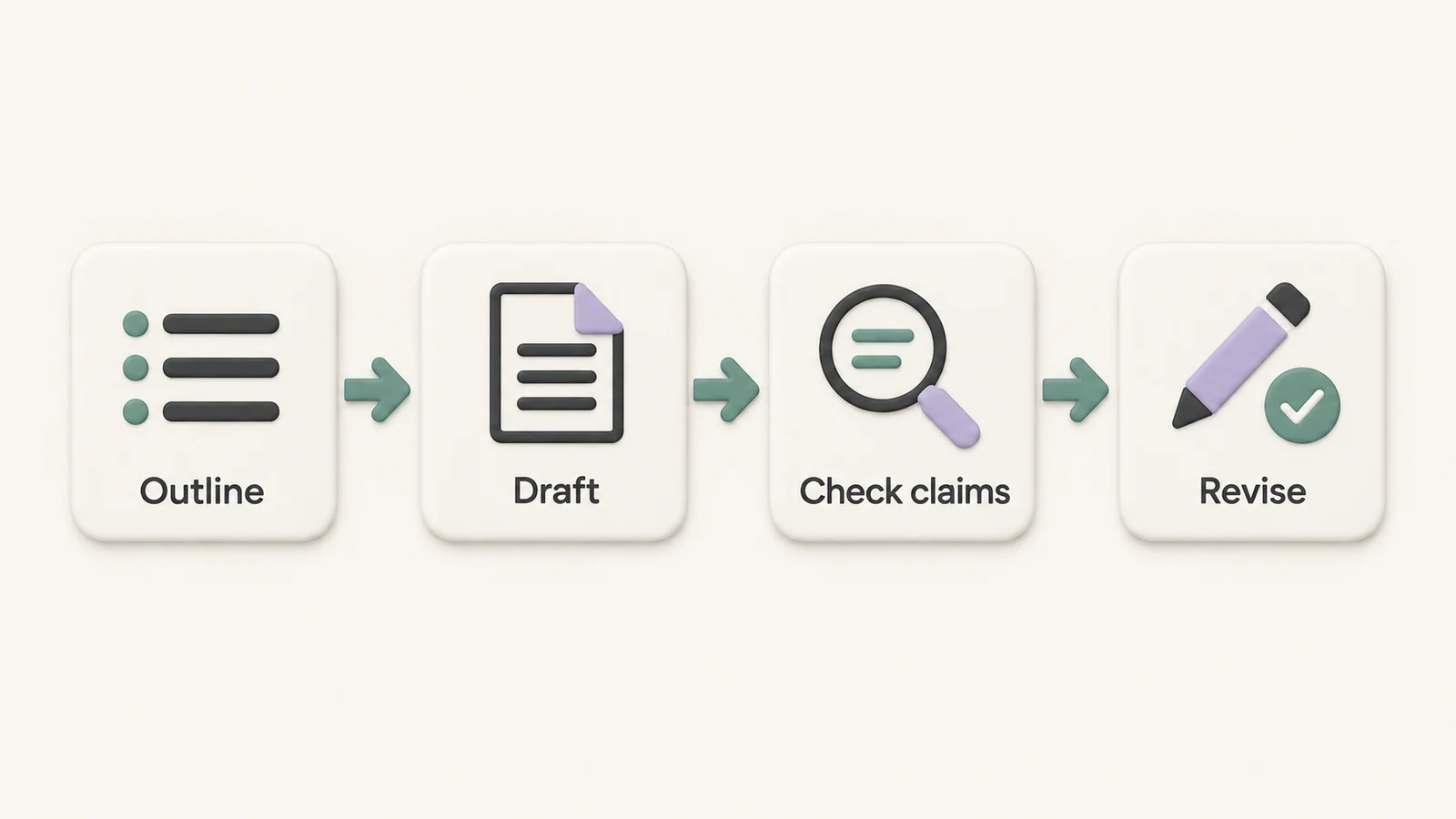
Use follow-ups to check claims
Once the writing sounds better, test whether it holds up. Ask “What assumptions did you make?” and “Which claims would most benefit from fact-checking?” Those questions help surface points to verify. You can ask for supporting sources, but review the important claims yourself: a source request does not replace an independent check.
How to Apply Better Prompting to Everyday Tasks
The same structure works across everyday tasks. What changes is the context you give and the output you need.
Writing and content tasks
Spell out the audience, purpose, tone, and length. If style matters, provide one to three short examples. For a larger piece, begin with an outline, then a draft, then focused revisions. Name the final format, whether that is a blog post, email, table, or bullet list.
Studying and research tasks
Specify the subject, your level, source limits, citation format, and whether the answer should show uncertainty. If the work must rely on uploaded files, say to use only those files. For current information, ask ChatGPT to browse, then check consequential claims against the cited sources.
Follow up with “What part of this answer are you least sure about?” to identify another place to verify.
Work and decision-support tasks
Define the scope, constraints, and what a good result looks like. For planning, ask for the upside, downside, limits, and likely fit of each option against your criteria. That makes the recommendation easier to judge than a single unexplained answer.
How to Save, Reuse, and Organize Good Prompts in ChatGPT
Once a prompt works, save its structure so you can adapt it instead of rebuilding it from scratch.
Native ChatGPT features and manual organization
Custom Instructions let you keep default guidance across conversations. Projects keep related chats and files in one place. Both work best when the task prompt still states its goal, context, sources, format, and boundaries. For a small collection, these features and manual notes may be enough.
Use StylerGPT when you save many prompts and want local folders
StylerGPT adds Prompt Manager inside the ChatGPT browser interface. You can save prompts in a searchable library, organize them in folders, and type the default // trigger in the composer to find and insert one. Template variables such as {{topic}} let you reuse a structure with new details before sending.
StylerGPT also adds chat folders and lets you export conversations locally as PDF, DOCX, Markdown, TXT, or JSON. Smart Search, available on Power, searches chat titles and messages when you need an older answer. Saved prompt items stay local to your browser; see the release notes for updates.
Native ChatGPT vs. a browser extension
| Feature | Native ChatGPT | StylerGPT extension |
|---|---|---|
| Prompt reuse | Custom Instructions, Projects, or manual copying | Prompt Manager with // trigger and template variables |
| Organization and search | Projects and built-in chat search | Local prompt and chat folders; Smart Search for titles and messages on Power |
| Export | Account data export | Per-conversation PDF, DOCX, Markdown, TXT, or JSON |
| Where it works | Browser and mobile app | Supported desktop browsers: Chrome, Edge, and Firefox |
Use native features for light reuse. A local prompt manager helps when you want many saved templates, folders, and quicker access to older material in your desktop browser.
Key Takeaways for Writing Better ChatGPT Prompts
State the task, audience, context, source limits, and output format. Cut details that do not change the answer. If the first result misses the mark, change one part at a time with a focused follow-up.
Verify important claims before relying on them. When a prompt works, save its structure and adapt it for the next task.
FAQs
How long should a ChatGPT prompt be?
There is no correct length. Give enough context to make the goal clear, then add only the constraints that affect the result. Use Custom Instructions for standing preferences and keep task-specific details in the prompt.
When should I ask ChatGPT clarifying questions first?
Ask when the task is vague, unfamiliar, technical, or research-heavy. The audience, scope, format, and available resources may matter more than rewriting the initial request.
What should I fact-check in a ChatGPT answer?
Check consequential claims, data points, dates, technical details, and cited sources with reliable outside material. Treat a generated research answer as a starting point for verification.