

Best ChatGPT prompt manager tools in 2026
A ChatGPT prompt manager saves your best prompts so you're not retyping the same instructions every session. The tools below cover the range from browser extensions to standalone clients and shared team libraries.
TL;DR
- StylerGPT is our pick for ChatGPT users who want local prompt storage, reusable templates, and optional pre-send privacy checks.
- AIPRM suits people who want a public library of prebuilt prompt templates inside ChatGPT or Claude.
- TypingMind fits workflows that reuse prompts across multiple model APIs from one client.
- Superpower ChatGPT combines prompt reuse with prompt chains and broader conversation management.
- Notion works best for teams that document and share prompts as a wiki rather than inside the chat window.
Why this matters
Most people lose their best prompts in scrollback. You write something that works, ChatGPT gives a good answer, and three weeks later you can't find the exact wording again. A dedicated prompt manager gives those instructions a permanent, searchable home.
The five tools below solve this differently. Some live inside ChatGPT as an extension; others sit outside it as a separate client or workspace. The right choice depends on whether you need local control, public templates, multi-model reuse, or collaboration.
Best for local prompt reuse: StylerGPT. Best for template discovery: AIPRM. Best for multi-model workflows: TypingMind.
What makes the best ChatGPT prompt manager
- Storage: where saved prompts live, whether synchronization is optional, and who can access them.
- Reuse: how quickly you can find a template, fill its variables, and insert it into a conversation.
- Organization: folders, tags, favorites, and search as a library grows.
- Privacy checks: whether supported outgoing text can be checked for sensitive data before sending. This is separate from backups or overwrite protection.
- Model support: whether the tool works inside ChatGPT, supports other chat sites, or connects to multiple model APIs.
- Export: whether you can take prompts or conversations elsewhere, and in which formats. Chat export and prompt-library backup are different capabilities.
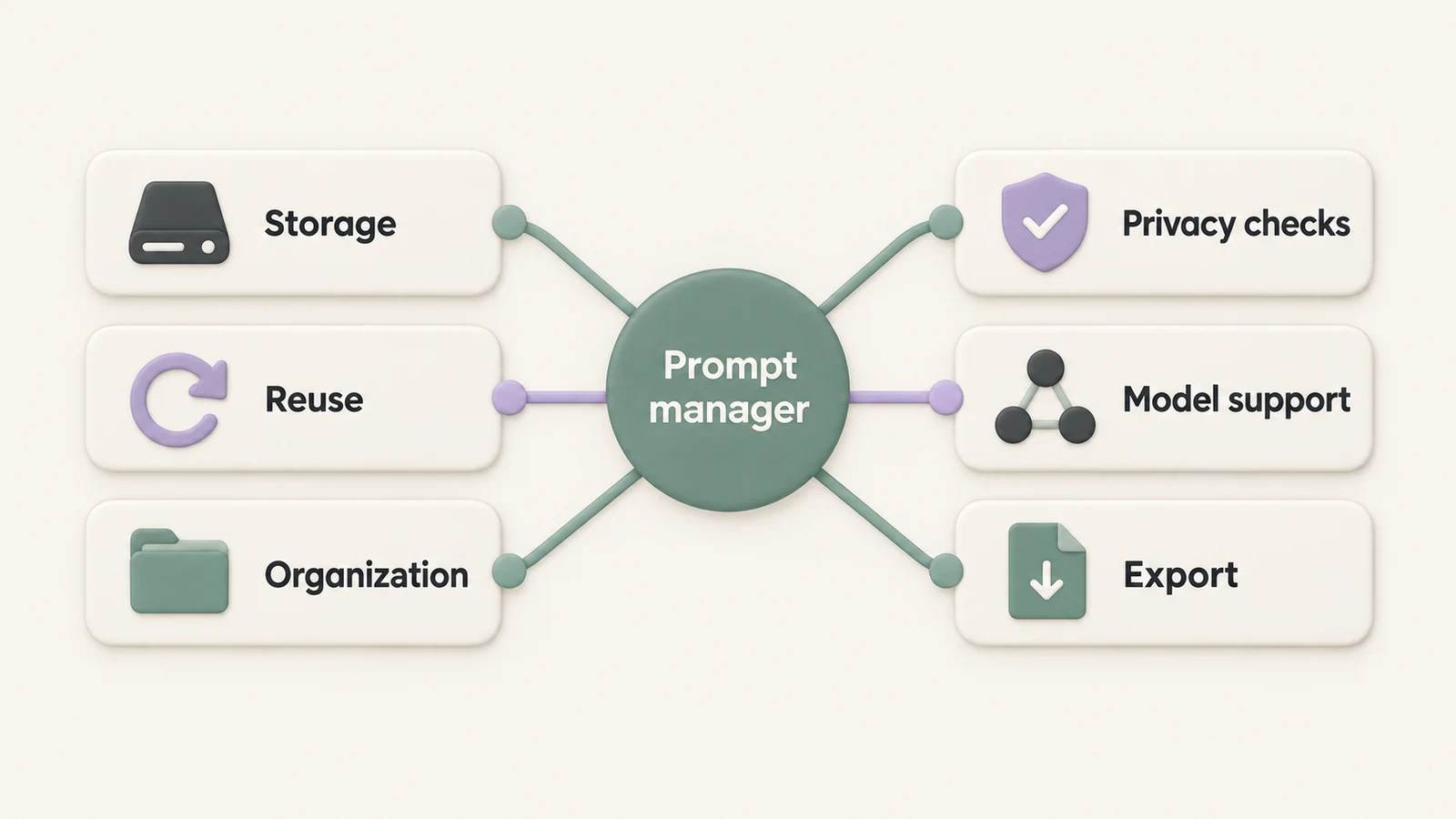
These six criteria help distinguish a reusable prompt library from a chat history you still have to scroll through.
At a glance: ChatGPT prompt manager comparison
| Tool | Best for | Standout feature | Key limitation |
|---|---|---|---|
| StylerGPT | Local prompt reuse in ChatGPT | Local templates with variables and optional Prompt Guard | ChatGPT-specific; no built-in prompt cloud sync |
| AIPRM | Discovering prebuilt templates | Public prompt library plus private lists | List limits and features depend on the plan |
| TypingMind | Multi-model prompt reuse | Prompt library in a separate API-based client | API setup and usage costs are separate |
| Superpower ChatGPT | Reusable prompt workflows | Prompt library, variables, and prompt chains | A broader workspace to configure |
| Notion | Team prompt documentation | Shared pages and databases | No native insertion into ChatGPT's composer |
1. StylerGPT: best ChatGPT prompt manager for privacy-conscious power users
StylerGPT is a browser extension built specifically for ChatGPT. Its prompt manager saves reusable prompts locally, with folders, favorites, search, and template variables. Chat folders organize conversations separately. Themes, font controls, and chat export support the rest of a daily ChatGPT workflow.
Open Prompt Manager to save and organize templates, or type the default // trigger at the start of the composer for quick access. Fill any variables, insert the prompt, and review it before sending.
StylerGPT pros:
- Saved prompts and folder assignments stay in your browser rather than being synced to a StylerGPT prompt-storage service.
- Template variables let you reuse the same structure with new inputs.
- Optional prompt guard checks supported outgoing text locally for sensitive data before sending.
- Chat export creates PDF or DOCX files without manually copying a full thread.
- Theme and font controls help tailor long ChatGPT sessions.
StylerGPT cons:
- Built for ChatGPT rather than a shared workspace across Claude, Gemini, and ChatGPT.
- Local storage does not provide built-in cross-device prompt synchronization.
- No public template marketplace like AIPRM's.
Prompt guard is an opt-in Power feature, disabled by default. A warning pauses supported text sends so you can edit or explicitly continue. It does not prevent overwriting saved prompts, and it does not inspect files, images, voice, or connector uploads. Local library storage also does not change how ChatGPT handles prompts you choose to send.
Best for: ChatGPT users who want reusable prompts and local organization inside their existing interface.
Verdict: Choose StylerGPT if your workflow centers on ChatGPT and you value local templates, quick insertion, and optional pre-send checks. See the feature guide for details.
2. AIPRM: best ChatGPT prompt manager for browsing prebuilt templates
AIPRM offers a public template library for discovering prompts by use case, alongside private prompts and lists. Its extension supports ChatGPT and Claude.
AIPRM pros:
- Public templates provide starting points for writing, marketing, and other tasks.
- Private lists help organize your own prompts and favorites.
- Templates are available within supported chat interfaces.
AIPRM cons:
- Public templates still need review and adaptation to your task.
- Private-list capacity and other features depend on your plan.
- It introduces an account-based library workflow to manage.
Best for: People who want prompt inspiration alongside their own saved templates.
Verdict: Choose AIPRM when template discovery is your main need; compare private-list limits if you also plan to build a large personal library.
3. TypingMind: best ChatGPT prompt manager alternative for multi-model workflows
TypingMind is a separate chat client that connects to model APIs using your API keys. Its prompt library supports reuse outside any single provider's native chat interface. You access models through APIs, rather than operating your existing ChatGPT conversations or subscription.
TypingMind pros:
- Reuse prompts while working with different connected models.
- Keep your workflow in one client instead of switching between native chat sites.
- A dedicated team offering supports shared prompt libraries.
TypingMind cons:
- Requires configuring model access and accounting for API usage costs.
- Runs in a separate interface from ChatGPT.
- Team deployment and personal use have different setup requirements.
Best for: Individuals or teams that regularly compare models or use different models for different tasks.
Verdict: Choose TypingMind when multi-model work justifies a separate client. An extension is simpler if your work stays entirely inside ChatGPT.
4. Superpower ChatGPT: best for reusable prompt workflows
Superpower ChatGPT adds a prompt library, variables, and reusable prompt chains alongside conversation organization tools. Its scope extends beyond quick snippets to repeated, multi-step workflows inside ChatGPT.
Superpower ChatGPT pros:
- Save and reuse prompts within ChatGPT.
- Use variables and prompt chains for repeated tasks.
- Combine prompt workflows with folders, search, and conversation management.
Superpower ChatGPT cons:
- The broader workspace takes time to configure around your needs.
- If you only need a small library, many of its additional tools may go unused.
Best for: Users who repeat sequences of instructions and want a prompt library alongside conversation tools.
Verdict: Choose Superpower ChatGPT if prompt chains and a broader ChatGPT workspace fit your routine. It is more than a keyboard-snippet tool.
5. Notion: best for teams documenting prompts collaboratively
Notion is not a dedicated ChatGPT prompt manager. A shared database can nevertheless hold prompt text, usage notes, owners, and examples so a team can maintain a common library.
Notion pros:
- Shared pages support team editing and documented guidance.
- Database properties and views help organize a larger library.
- Prompts can live beside the processes they support.
Notion cons:
- You copy prompts into ChatGPT rather than inserting them through a native composer integration.
- Your team must design and maintain the library structure.
- Notion's document exports do not directly export existing ChatGPT conversations.
Best for: Teams that need shared prompt documentation more than an in-chat tool.
Verdict: Choose Notion when ownership, examples, and collaboration matter most. For solo prompt reuse, a dedicated manager involves fewer steps. Review Notion's sharing controls when setting up a team library.
How we ranked these
This is an editorial comparison by the StylerGPT team, based on the six criteria above and the linked product documentation. StylerGPT is our own product. The recommendations describe workflow fit, not a measured speed benchmark or an independent security audit.
No tool wins on every criterion. Local storage, public templates, model access, and collaboration solve different needs, which is why the recommendations have different best-for labels.
Try StylerGPT's prompt manager
Keep reusable prompts, template variables, and chat folders close to your ChatGPT workflow, with optional prompt guard and local PDF/DOCX chat export.
Which ChatGPT prompt manager should you choose?
If you live inside ChatGPT and want local prompt reuse, start with StylerGPT. If you need template ideas, explore AIPRM. If your work spans model APIs, consider TypingMind. Choose Superpower ChatGPT for prompt chains alongside conversation tools, or Notion for a shared documentation library.
Try the same three prompts in your shortlisted tool: one short instruction, one template with changing inputs, and one longer workflow. Check how easily you can find, edit, and reuse each one.
FAQ
What is a ChatGPT prompt manager?
A prompt manager saves reusable instructions so you can find and insert them instead of retyping them. It can be an extension inside ChatGPT, a library in a separate client, or a shared database.
Does StylerGPT store my prompts in the cloud or locally?
Saved prompts and folder assignments are stored locally in your browser, without built-in cloud synchronization. Prompts you submit to ChatGPT still go to ChatGPT for processing.
Can I use one prompt manager across ChatGPT and other AI tools?
It depends on the tool. TypingMind provides a separate client for connected model APIs. AIPRM supports ChatGPT and Claude. StylerGPT focuses on the ChatGPT interface.
What's the difference between AIPRM and StylerGPT?
AIPRM emphasizes public template discovery and private lists. StylerGPT combines a local prompt library with template variables, chat folders, appearance controls, and optional pre-send privacy checks.
Is TypingMind better than a ChatGPT prompt manager extension?
TypingMind makes sense when you need multiple model APIs in one client. An extension can be a better fit when you want to keep working in ChatGPT's existing interface.
How do I export ChatGPT conversations as PDF or DOCX?
StylerGPT's Chat Export creates PDF or DOCX files from supported conversations. This exports the conversation; it is distinct from backing up your saved prompt library.
Can I organize ChatGPT chats into folders without a separate app?
Extensions such as StylerGPT and Superpower ChatGPT add folder organization within the ChatGPT interface. Chat folders organize conversations, while prompt folders organize reusable instructions.
Does prompt guard protect saved prompts from being overwritten?
No. StylerGPT's Prompt Guard checks supported outgoing text locally for sensitive data before sending. It is not a backup, version history, or overwrite-protection system.
One last thing
Saving a prompt only helps if you can find it again. Give templates descriptive names, use variables for changing details, and review the final text before sending. If sensitive information is part of your workflow, check the scope of any privacy feature instead of assuming that local storage or a shield icon protects every kind of input.