
10 ChatGPT Custom Instructions & Personalization Tips for 2026
A useful ChatGPT setup combines three things: responses that fit your work, privacy settings you understand, and an interface you can comfortably read. Start with ChatGPT's own controls, then add StylerGPT when you want more control over fonts, backgrounds, reusable prompts, prompt guard, and local conversation exports.
ChatGPT features and menu labels can vary by account, platform, and workspace. The steps below point you toward the current controls without assuming every account has the same model or feature access.
Quick Reference Guide
| # | What to customize | Where to start |
|---|---|---|
| 1 | Memory and remembered preferences | Settings → Personalization → Memory |
| 2 | Custom Instructions | Settings → Personalization |
| 3 | Purpose-built GPTs | Explore GPTs or a GPT shared with you |
| 4 | Voice conversations | Voice control in the message bar; Settings → Voice |
| 5 | Response speed and reasoning | The model picker and reasoning controls available to your plan |
| 6 | Output format and tone | Your prompt, Custom Instructions, or project instructions |
| 7 | Projects and connected apps | Projects in the sidebar; Apps or Plugins where available |
| 8 | Training preferences and temporary conversations | Settings → Data Controls; Temporary Chat |
| 9 | Appearance, contrast, fonts, and layout | Settings → General; StylerGPT appearance controls |
| 10 | Reusable prompts and keyboard habits | StylerGPT Toolbox and your browser's shortcut settings |
1. Review What ChatGPT Remembers
Open Settings → Personalization → Memory and review the controls your account provides. The current memory experience can maintain an evolving summary of useful context from chats, files, and connected apps. Some accounts also expose the legacy saved-memory controls.
Ask what ChatGPT remembers, correct details that no longer apply, and turn memory off when you do not want it to personalize responses. Deleting a conversation alone may not remove information remembered from it: removing a detail completely can require deleting the memory and the other sources where it appears. OpenAI explains the current memory controls here.
Use memory for context that remains useful over time. Keep an exact reusable prompt in a prompt library so you can inspect and edit its wording before sending it.
2. Make Custom Instructions Specific
Custom Instructions are a good place for durable preferences: your working language, preferred level of detail, and the structure you want in a typical answer. On web and desktop, look under Settings → Personalization and enable customization.
The old advice about two fixed 1,500-character boxes no longer describes every account. Current limits vary by plan: Free and Go allow 1,500 characters, while Plus, Pro, Business, Enterprise, and Education allow 5,000. Check the field shown in your account. See OpenAI's Custom Instructions guide.
Try instructions such as:
- Explain unfamiliar terms before using abbreviations.
- For comparisons, state the criteria and show the tradeoffs.
- Keep the answer concise unless I ask for a detailed walkthrough.
Test your instructions on a familiar task, then remove any wording that makes the answer less useful.
3. Use a GPT That Fits the Task
Explore available GPTs for focused tasks such as reviewing writing, studying a subject, or working with a particular knowledge collection. Read the description and enabled capabilities before sharing files or connecting services.
Using a GPT and creating one have different access rules. OpenAI currently makes new GPT creation and publishing unavailable on personal accounts; managed-workspace options depend on permissions. Existing GPTs remain usable, with editing subject to eligibility. GPTs also do not automatically inherit your personal memory or Custom Instructions. Check the current GPT availability guide.
For a repeatable workflow, save the prompt that produced a useful result. A reusable prompt can be easier to maintain than rebuilding the setup each time.
4. Choose the Voice Experience You Need
Use the Voice control in ChatGPT's message bar for spoken conversations, and check Settings → Voice for the modes available to your account.
The current options can include Live, Advanced, and Standard. Live supports natural conversation and, where available, text, images, search, and memory. Video and screen sharing are currently supported through Advanced on eligible mobile subscriptions, rather than through Live. Access and limits depend on your account and platform. See the current ChatGPT Voice guide.
Try voice for thinking through an outline or practicing a conversation. Switch to text when you need to check exact names, numbers, or a carefully structured prompt.
5. Match Reasoning Effort to the Work
Use the model picker available in your account to choose how much reasoning a task needs. Current ChatGPT options include GPT-5.6-based experiences and GPT-6 Pro on eligible plans as it rolls out.
Start with Instant for routine drafting and quick questions. For a difficult analysis, choose a reasoning option such as Medium, High, Extra High, or Pro when your plan provides it. Free and Go accounts can use the available Think control for harder questions. Model access, usage limits, and workspace controls differ. OpenAI maintains the current model and reasoning comparison.
A practical test is to compare two answers to the same task. Keep the faster setting when the extra reasoning does not improve the result enough to matter.
6. Describe the Output You Want
Tell ChatGPT what a useful answer looks like before it starts. Include the audience, purpose, constraints, and output format in your prompt.
For example: "Compare these three options in a table using cost, setup effort, and maintenance. Finish with the two questions I should resolve before choosing."
Useful formats include a short checklist, a draft email, an outline, a table, or a block of JSON. Asking for JSON in a chat is a formatting request, not a guarantee that the result conforms to an application's schema. Validate it before passing it to software.
Save prompts you reuse in StylerGPT Prompt Manager. If a draft needs more structure, Prompt Enhancer can refine it through ChatGPT before you review and send the final version.
7. Keep Related Work in Projects
Use a ChatGPT Project to group related conversations, files, and instructions. Project instructions apply within that project and can override your global Custom Instructions. Review the memory and sharing settings before adding work that belongs in a separate context. File and collaboration limits vary by plan. Learn how Projects work.
Connected apps can bring information from supported services into a conversation. Look for Apps or Plugins, depending on the interface available to you, and review the connected account and its permissions. Availability depends on the app, plan, region, and workspace. See the connected-app guide.
StylerGPT's local Chat Folders serve a different purpose: they organize conversations in your browser's sidebar, with main folders and multiple levels of nested subfolders on every plan. All levels count toward the same folder allowance. They do not add project instructions or shared project memory.
8. Separate History, Memory, and Model Training
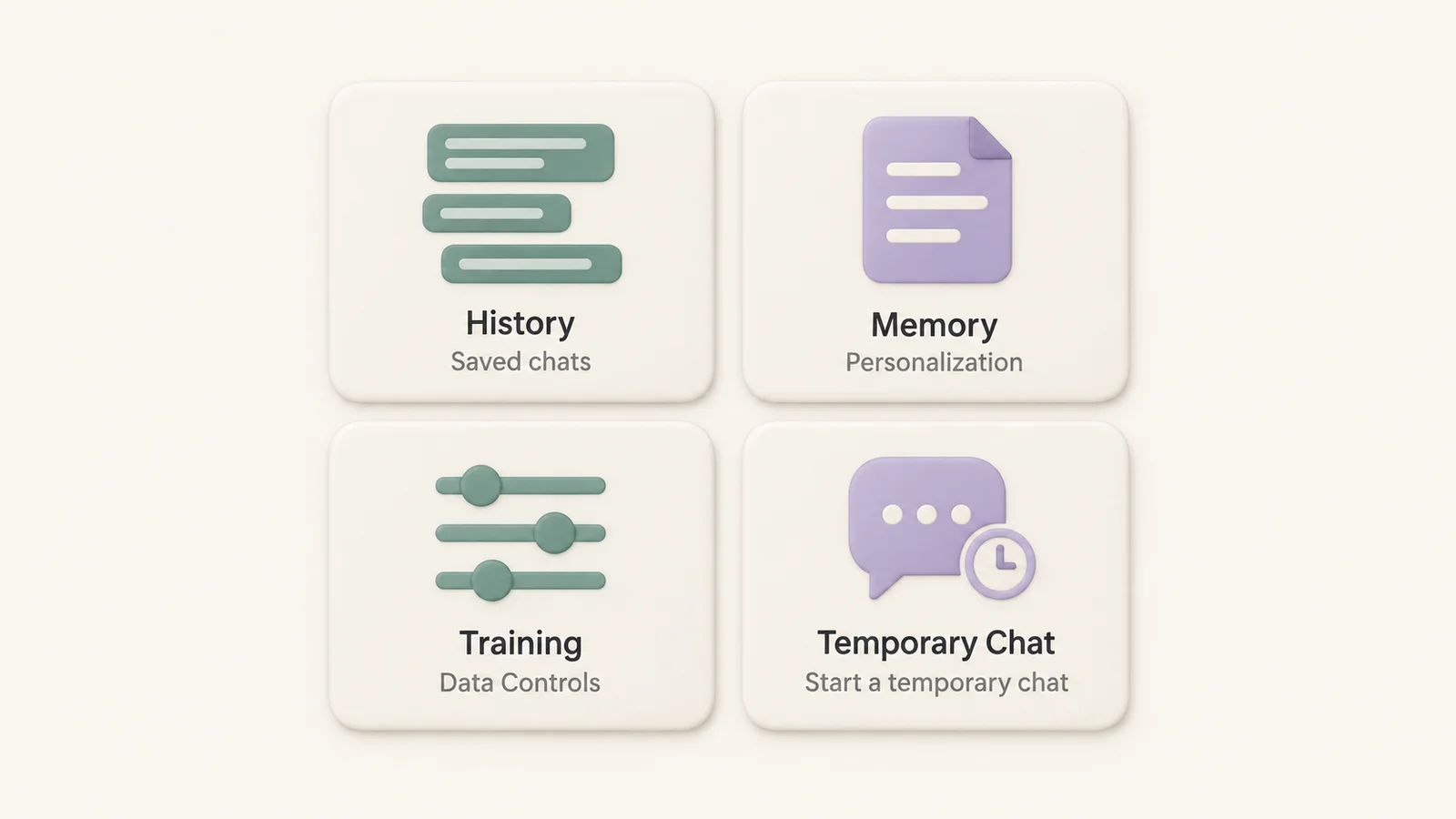
On a personal ChatGPT account, open Settings → Data Controls and review Improve the model for everyone. Turning this off prevents new conversations from being used to improve models while allowing them to remain in your history. Memory is controlled separately. See OpenAI's Data Controls FAQ.
For a temporary conversation, choose Temporary Chat. It starts without personalization by default; if your account offers a personalized option, choose before the conversation begins. While a chat remains temporary, it does not create new memories or train models. OpenAI may retain a copy for up to 30 days for safety. Saving it converts it into a regular chat governed by your account settings. Review Temporary Chat behavior.
Use ChatGPT's account data export for an account archive. Use StylerGPT Chat Export when you want to save a particular conversation locally as PDF, DOCX, Markdown, TXT, or JSON.
9. Make the Interface Comfortable to Read
On ChatGPT web, open Settings → General. Appearance offers System, Light, and Dark. Supported accounts can also adjust Contrast and Accent color. Appearance is device-specific; available colors and controls can vary. See ChatGPT's appearance guide.
Start with a readable contrast level and browser zoom. Then use StylerGPT for more detailed font, background, chat-width, and bubble controls. Font and layout controls require Pro, Power, or an active trial; complete theme presets require Power or an active trial. Compare the current plans.
Test a long answer, a table, and a code block before keeping a setup. A pleasant background should still leave the conversation easy to read.
10. Build a Few Useful Keyboard Habits
Learn the shortcuts shown in the current ChatGPT interface and check your browser's extension shortcut settings for the StylerGPT panel. Browser and operating-system shortcuts can conflict, and existing installations may retain a previous assignment.
StylerGPT adds two practical writing habits:
- Prompt History: use Ctrl/Cmd + Up or Down in the message box to revisit previous prompts.
- Enter for new lines: when enabled, Enter adds a line and Shift+Enter sends the message.
Prompt Manager can also offer quick access when you type its configured trigger at the start of the composer; the default is //. Choose one reusable prompt you use often and test this flow before adding a larger library.
If you have Power or an active trial, Prompt Guard can check supported outgoing text locally before sending. It is disabled by default; files, images, voice, and connector uploads are outside its scope.
Your First Setup Checklist
- Review memory and model-training settings.
- Write a small set of useful Custom Instructions.
- Try a familiar task with the response and reasoning controls available to you.
- Create a Project for work that needs shared context across chats.
- Choose comfortable appearance and font settings.
- Save one reusable prompt and export one conversation you want to keep.
Start with the setting that removes the most friction from your day. For a walkthrough of the extension itself, follow the StylerGPT setup guide.
Sources
Official references used to support the product details and factual claims in this article.
- OpenAI Help Center: Memory FAQ
- OpenAI Help Center: ChatGPT Custom Instructions
- OpenAI Help Center: GPTs in ChatGPT
- OpenAI Help Center: ChatGPT Voice
- OpenAI Help Center: GPT-5.6 and GPT-6 Pro in ChatGPT
- OpenAI Help Center: Projects in ChatGPT
- OpenAI Help Center: Connected apps in ChatGPT
- OpenAI Help Center: Data Controls FAQ
- OpenAI Help Center: Temporary Chat FAQ
- OpenAI Help Center: Updating your visual experience
- StylerGPT features and plan comparison