

How to Organize ChatGPT Chats for Classes and Exam Prep
To organize ChatGPT chats for classes and exam prep, give each course a home, name each chat by topic and task, and review useful conversations once a week. When finals approach, use that collection to find explanations, practise weak topics, and save checked revision material.
You do not need a complicated system. Start with the courses you are taking now and one naming pattern you can keep using throughout the semester. This guide follows a biology course from the first lecture to the final backup; use the same routine for your own subjects.
1. Give Each Course a Home Before the Semester Starts
Write down your course names and decide where each course's conversations will belong. Use the same name everywhere: BIO101 - Biology - Fall 2026 is easier to recognize than a mixture of “Bio,” “Science,” and “This semester.”
If your chats need the same syllabus, permitted readings, and instructions, create a native ChatGPT Project for that course. Add only material you are allowed to upload, then set a short instruction such as:
Help me understand BIO101 topics. Explain terminology before using abbreviations. When reviewing my answers, identify mistakes in my reasoning and ask me to try again before showing a full solution.
If your main need is finding and grouping conversations, StylerGPT chat folders provide personal filing in ChatGPT's desktop-browser sidebar. Projects provide course context; folders organize conversations. Placing chats in a folder does not give them shared knowledge.
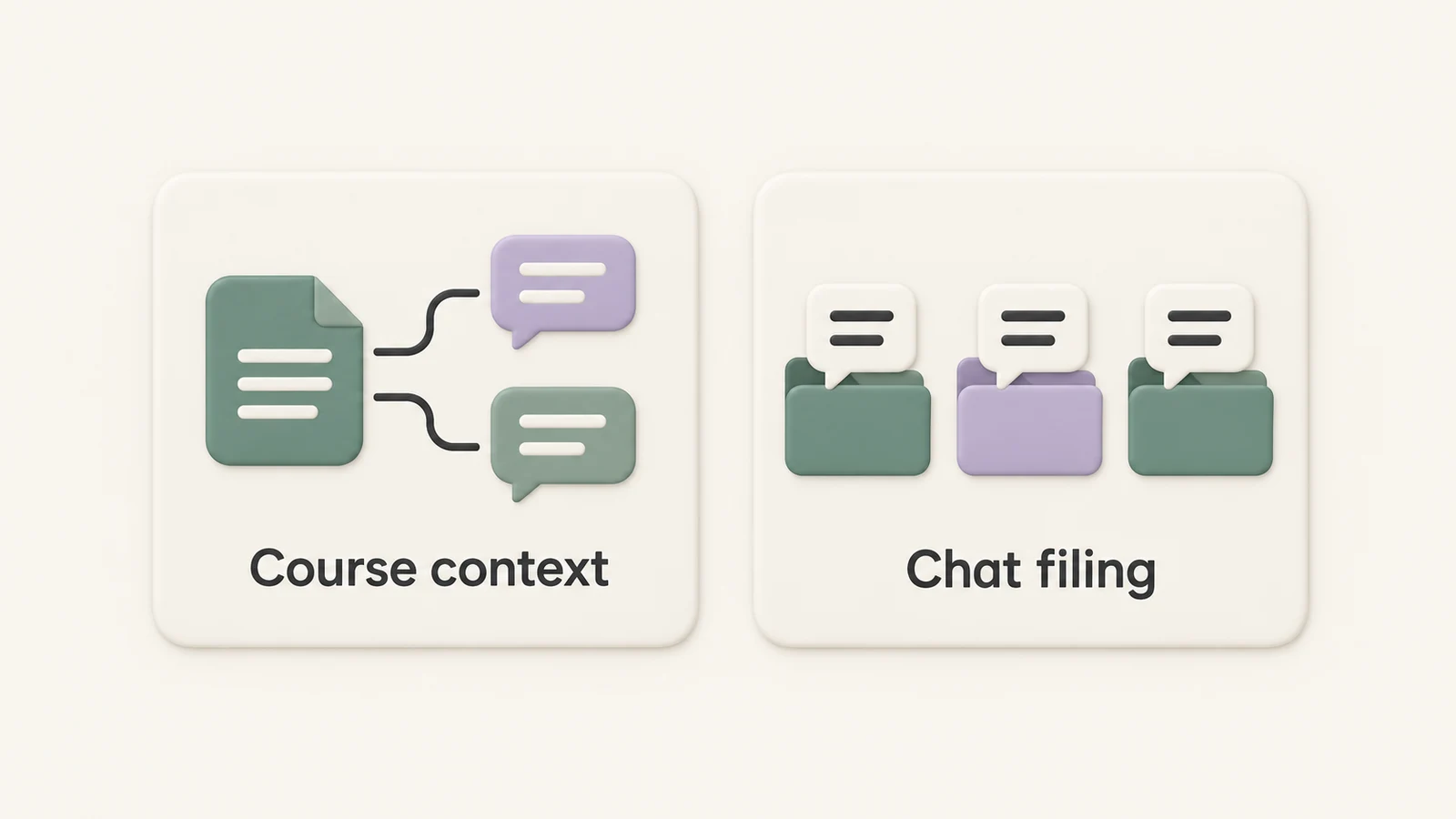
Keep the reference material your answers need separate from the filing system you use to find conversations. This illustration is conceptual, not an interface screenshot.
Choose a Folder Structure You Can Maintain
For one course, try a Biology folder with Lectures, Labs, and Exam Review subfolders. That uses four folders in total, because the parent and subfolders share the same allowance.
StylerGPT Free includes 3 folders. To stay within that limit, use three top-level folders such as Biology, Statistics, and History, then distinguish tasks in the chat titles. Alternatively, dedicate all three folders to one course: Biology Lectures, Biology Labs, and Biology Review. Check current allowances before building a larger tree.
Keep the folder system in the browser profile you use for studying. StylerGPT folder assignments do not automatically sync between browsers or devices and do not appear in the ChatGPT mobile app. If you use both Projects and extension folders, confirm that the conversations you need are available in the relevant folder view.
2. Name Study Chats by Course, Week, and Task
Give a conversation a useful title as soon as it becomes worth keeping. A pattern such as Course - Week - Topic - Task makes the purpose visible before you open it.
| Instead of | Use a title like | Why it helps later |
|---|---|---|
| Biology question | BIO101 - W04 - Cell respiration - Explanation | Finds the explanation for a specific lecture. |
| Help with lab | BIO101 - W04 - Respiration lab - Error review | Separates practical work from theory. |
| Quiz me | BIO101 - W05 - Enzymes - Practice quiz | Identifies a practice session you can repeat. |
| Exam help | BIO101 - Final - Respiration - Weak topics | Marks material to revisit before the exam. |
Start a separate chat when the task changes substantially. A lecture explanation, your attempted lab analysis, and a practice quiz are easier to revisit as distinct conversations than as one long thread.
For a new chat outside a Project, provide the relevant course context again. A descriptive title helps you find a conversation; it does not supply course instructions to ChatGPT.
3. End Each Study Session with a Short Recap
Before closing a useful conversation, ask for a recap that separates what you understand from what still needs checking:
Based on this conversation, list the concepts I practised, mistakes I made, and questions I still need to check against my lecture notes. Keep uncertain points clearly marked. Do not invent references or describe an answer as verified unless I checked it here.
Compare the recap with your own notes. Keep the corrected explanation alongside your attempted answer so you can see why you made the mistake. Rename the chat and place it in the appropriate course folder.
For material you have not checked, use a visible marker in the title, such as To check - Enzyme inhibition. Remove the marker only after reviewing the original course source.
4. Spend a Few Minutes on a Weekly Review
At the end of each week, open the course's chats and tidy only the work you created that week:
- Rename vague titles using your course pattern.
- File useful explanations, worked attempts, and practice sessions.
- Check outstanding questions against lecture notes, readings, or instructor feedback.
- Record weak topics in a short revision list outside chat history, with the course week and source reference.
- Choose one weak topic for your next practice session.
For example, after Week 4 you might keep cell respiration explained, mark ATP yield assumptions for checking, and schedule another attempt at interpreting the lab results. The goal is a usable revision list, not a perfectly categorized history.
Find an Explanation When You Forget the Chat Title
Start with the course folder and your naming pattern. If you remember a phrase from the discussion, such as competitive inhibition, Smart Search can search synchronized chat titles and message content.
Smart Search requires Power or an active Power trial, Chat archive enabled, and the initial synchronization completed. Narrow matches by a distinctive topic or conversation update date, then open the exchange and check its context. Synchronization may take time; a missing result does not prove that the chat was deleted.
For detailed setup, use the search and export guide. You can still follow the course-folder and naming routine without Smart Search.
5. Reuse a Study Prompt That Makes You Practise
Keep a small set of prompts for the tasks you repeat. Prompt Manager lets you save and insert them; add the current topic, permitted reference material, and your own attempt each time.
Recall Practice
Topic: [topic]. Course material: [permitted excerpt or reference]. Ask me one recall question at a time. Wait for my answer, give feedback, and ask a follow-up about anything I misunderstood. Use the supplied material and flag anything it does not establish.
Review an Attempted Solution
Here is the exercise and my attempted solution: [paste both]. Identify the first step where my reasoning goes wrong. Give me a hint and wait for another attempt before showing a worked solution.
Explain a Difficult Concept
Explain [concept] at the level of [course]. Start with a plain-language explanation, connect it to the supplied course material, and ask me to explain it back in my own words. Flag assumptions and details I should verify.
Use these for practice within your institution's rules. Check explanations and citations against course sources rather than treating a fluent answer as proof that it is correct.
6. Build an Exam Review Queue from Your Weak Topics
When exam preparation begins, use your weekly revision list rather than rereading every chat. Group topics into Needs checking, Needs practice, and Ready to revisit briefly in your study notes. These are suggested note headings, not automatic ChatGPT or StylerGPT labels.
| Topic | Evidence from your study chats | Next action |
|---|---|---|
| Cell respiration | You can explain the stages but confuse their locations. | Practise matching each stage to its location without notes. |
| Enzyme inhibition | Your last quiz mixed up two mechanisms. | Compare the definitions with the lecture source, then try fresh questions. |
| Lab interpretation | Your corrected answer still relies on an unchecked assumption. | Check the lab manual or ask the instructor before practising again. |
Open the relevant conversation, attempt a fresh question, and compare your reasoning with the checked material. Mark progress based on what you can explain or solve yourself, not how many chats you have filed.
Keep one topic per practice chat when that makes corrections easier to find. A title such as BIO101 - Final - Enzymes - Second attempt preserves the link to your earlier work without making the chat depend on another conversation's contents.
7. Save Checked Material Before the Semester Ends
Choose the conversations worth keeping: a corrected explanation, a useful practice session, and any discussion that records an important mistake. Chat Export supports PDF, DOCX, Markdown, TXT, and JSON.
- Choose PDF for a readable revision copy.
- Choose DOCX if you want to edit the material in a word processor.
- Choose Markdown or TXT for lightweight study notes.
- Choose JSON when you need structured conversation data.
Include your questions and attempted answers when they explain a correction. Open each exported file outside ChatGPT and check it before deleting anything. Free includes 3 conversation exports per month; exporting the same chat in another format uses another allowance. See pricing for the current limits.
Keep exports with your permitted source documents and verified notes, for example in Fall 2026 / BIO101 / Revision. Save important Project instructions separately. A conversation export is not a restorable backup of a Project, its uploaded files, or your folder tree.
Do this before resetting a browser profile, uninstalling the extension, or deleting a course Project. StylerGPT provides privacy-first tools that work in your browser; follow your institution's rules for uploading and exporting course materials.
Your Semester Routine at a Glance
| When | What to do | What you should have afterward |
|---|---|---|
| Before classes | Set up course homes and a naming pattern. | A recognizable place for each subject. |
| After a study session | Check the recap, rename the chat, and file it. | A useful conversation you can find again. |
| Each week | Review uncertainties and choose weak topics. | A short, current practice list. |
| Before exams | Practise from that list and review your reasoning. | Checked corrections and clearer priorities. |
| At semester end | Export selected chats and verify the files. | Study records stored with the original materials. |
Start with one course and use the routine for a week before expanding it. For more examples of course folders and practice sessions, see StylerGPT for students.
FAQs
Do I need a new ChatGPT Project each semester?
Create one if the course materials and instructions need a fresh boundary. Use a name that includes the course and term. If you only need to organize existing chats, a course folder and consistent titles may be enough.
Can I organize several courses with three folders?
Yes. Use one top-level folder per course, up to your allowance, and put the week, topic, and task in each chat title. Main folders and subfolders count together, so adding a subfolder uses another slot.
How do I turn old class chats into exam revision?
Start with the topics you struggled with. Find the relevant chat, check the explanation against your course source, and attempt a new question without looking at the answer. Save the corrected material you will want to revisit; do not export your entire history just to make a larger revision collection.
What should I save before deleting a course Project?
Save important conversations, permitted course files, and a copy of useful Project instructions. Open and verify the saved files first. Deleting a native Project removes its chats and instructions, along with files stored only there. Removing a StylerGPT folder assignment leaves the underlying conversation intact.
Sources
Official references used to support the product details and factual claims in this article.