
Save ChatGPT to PDF Without Broken Format
If I want to save one ChatGPT conversation as a PDF, the simplest desktop method is my browser's Print to PDF option. If the preview shows cut-off code, awkward page breaks, or a narrow chat column, I switch to Google Docs or Microsoft Word for cleanup. If I export chats often, StylerGPT gives me a repeatable export workflow inside ChatGPT.
This guide covers desktop browsers. StylerGPT is a desktop browser extension for Chrome, Edge, and Firefox; its export controls are not a feature of the ChatGPT mobile app.
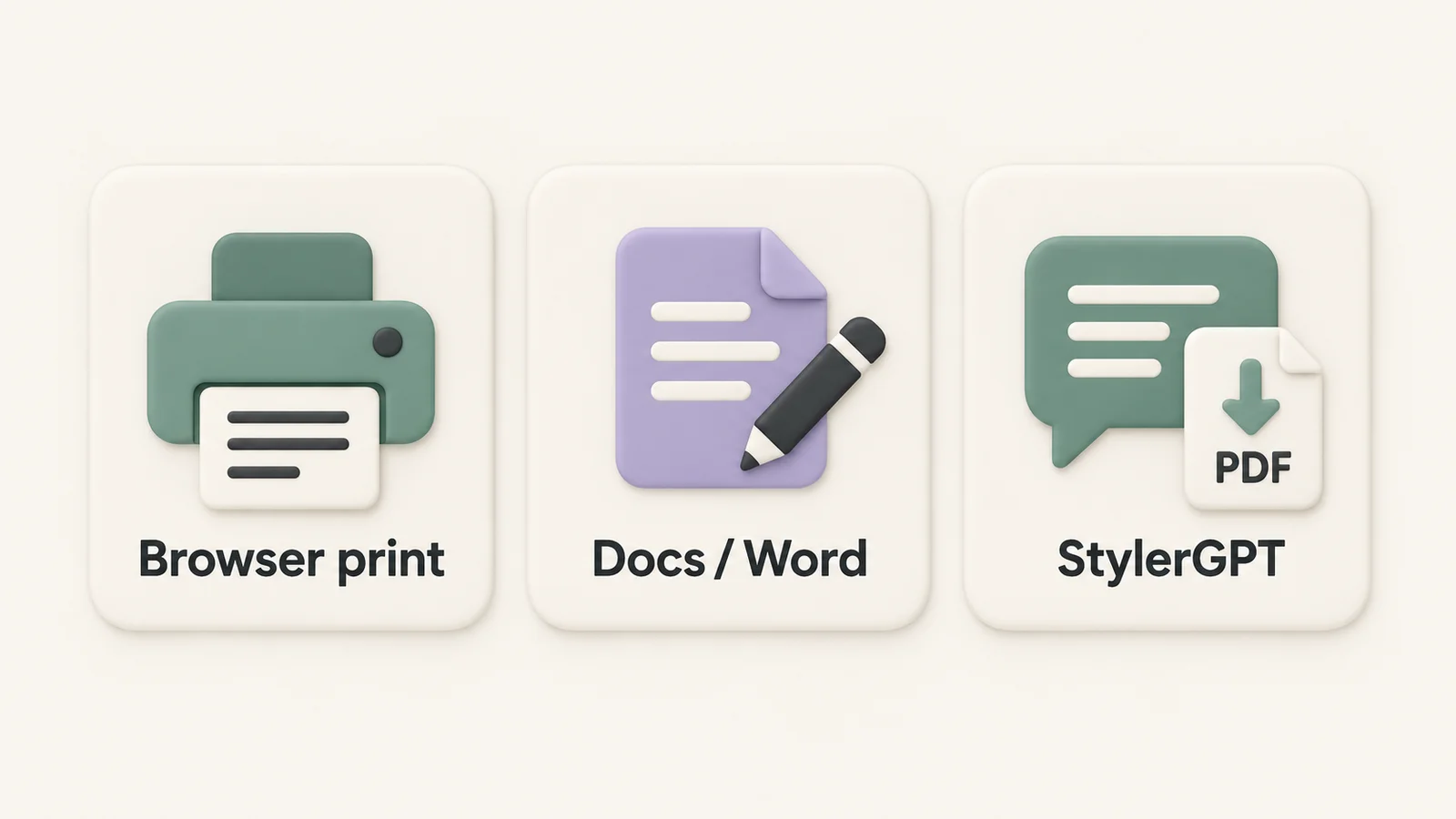
The decision comes down to how much layout control I need before saving:
- Browser Print to PDF fits a quick, one-off save.
- Docs or Word fits manual cleanup and edited output.
- StylerGPT fits repeat exports without copying the conversation into another app.
If the chat is mostly plain text, browser printing may be enough. If it includes code blocks, tables, images, or long answers, I check the output more carefully.
| Method | Best for | Main tradeoff |
|---|---|---|
| Browser Print to PDF | Fast saving from desktop ChatGPT | Page layout and completeness need checking |
| Google Docs / Word | Manual cleanup and edited documents | Copying and formatting take more time |
| StylerGPT Chat Export | Repeat desktop exports | Requires a browser extension |
Method 1: Fix Browser Print to PDF Before You Save
Open the conversation and make sure the messages you want are loaded. For a long chat, scroll through the conversation before opening print preview, then confirm that the first and last messages appear in the output. A PDF that looks tidy can still be incomplete.
Press Ctrl+P on Windows or Cmd+P on Mac. In Chrome, choose Save as PDF as the destination, then inspect the preview before saving. Other browsers or system print dialogs may use slightly different labels.
Print Settings That Fix Common Formatting Problems
Start with page width, then adjust scale and margins. In Chrome and Edge, many of these controls appear under More settings.
| Print setting | Problem to check | What to try |
|---|---|---|
| Layout | Wide tables or code clipped on the right | Try Landscape instead of Portrait |
| Scale | Text extends beyond the page | Reduce scale in small steps; try 90% as a starting point |
| Margins | Too little usable page space | Try Minimum or None, then review every edge |
| Headers and footers | Unwanted date, URL, or page title | Turn off browser-added headers and footers |
Reducing scale also makes text smaller. An 80–95% setting may help a wide block fit, but readability matters more than squeezing everything onto fewer pages.
Remove the Sidebar and Check the Conversation Width
Collapse the ChatGPT sidebar before opening the print dialog. Depending on the page's print layout, this may give the conversation more room or reduce unwanted interface content.
Do not assume that the preview matches the screen. Check the actual PDF pages for a narrow column, missing replies, or sidebar controls. If the conversation still looks cramped, try Landscape or move to Method 2.
Fix Cut-Off Code and Awkward Page Breaks
Long code lines are easy to miss because they can extend beyond the printable area. Reduce scale in roughly 5% steps and check the longest lines, including their final characters. A landscape page may help with wide tables too.
Browser printing gives you limited control over where a heading, table, or code block splits. If the preview still looks messy, move the content into Docs or Word rather than repeating small changes that do not solve the problem.
Method 2: Use Google Docs or Microsoft Word for Better Control
When browser printing chops off code or produces awkward spacing, a document editor gives you direct control over headings, page breaks, and table layout. This is useful when the chat needs to become a report, client draft, study note, or document you will revise.
Copy Only What You Need and Clean Up the Document
Copy the replies you want to keep into Google Docs or Microsoft Word. Review the paste result before working on the layout: code indentation, links, tables, and images may need attention.
Then clean up the document:
- Remove copied buttons, sidebar text, and repeated interface labels.
- Apply consistent heading styles.
- Normalize paragraph spacing.
- Check each table for missing cells or columns.
- Add any images that did not copy correctly.
The goal is a readable document rather than a replica of the chat interface. Keep a separate editable copy if you expect to make changes later.
Make Code and Long Responses Readable on the Page
Use a monospaced font for code and check that indentation survives copying. Adjust the code area's width or wrapping in the editor you use; long strings and URLs may need extra care.
Start with standard margins. Try Landscape for a particularly wide table or code sample. For a short block that would otherwise split awkwardly, insert a page break before it using the editor's Insert menu or page-break shortcut, such as Ctrl+Enter in Word on Windows.
A manual break cannot keep a block longer than one page together. For those sections, prioritize legible text and sensible continuation across pages.
Save the Cleaned-Up Document as PDF
In Google Docs, use File → Download → PDF Document (.pdf). In desktop Word, use Save As, Save a Copy, or Export and choose PDF; the exact command depends on your version.
Open the exported PDF after saving. The editable document and the final PDF can wrap differently, so do not rely only on the editor view.
| Criteria | Browser Print to PDF | Google Docs / Word |
|---|---|---|
| Setup time | Quick | Requires copying and cleanup |
| Page breaks | Mostly controlled by the browser | Can be adjusted in the document |
| Code handling | May clip long lines | Editable font, spacing, and layout |
| Editing | Edit the source chat content elsewhere | Edit the source document before exporting |
| Best use case | Quick archives | Reports, technical notes, or polished drafts |
Method 3: Use StylerGPT for Repeat Exports
If you regularly save conversations, StylerGPT adds Chat Export inside ChatGPT. It is a privacy-first extension with tools that work in your browser. You can save a conversation as PDF, DOCX, Markdown, TXT, or JSON, choosing either all messages or only assistant responses.
Choose the Export Settings That Affect the PDF
Open the conversation, then open Chat Export from the chat header and select PDF. Review the available PDF options before downloading:
- Message scope: include the whole conversation or only assistant responses.
- Font size: choose text that stays comfortable to read on a PDF page.
- Page margins: balance usable space against breathing room at the edges.
- Appearance: choose the available light or dark presentation.
- Document details: decide whether to include the title, conversation link, and page numbers.
The export creates its own document layout. Chat width presets change your reading workspace; they are not a substitute for the PDF's font-size and margin settings. Changing the on-screen chat width is not a reliable fix for a clipped exported page.
StylerGPT's PDF output uses selectable text for text content. Images remain images, so inspect diagrams, charts, and screenshots separately. Review the generated file whenever the chat contains complex formatting.
When StylerGPT Is a Better Fit Than Browser Printing
Chat Export is useful when you want to save similar conversations repeatedly, include only assistant replies, or choose a different file format without copying everything into a document editor.
If the content still needs substantial editing, choose DOCX and finish in Word or Docs. PDF suits sharing and archiving; DOCX is a better starting point for revisions. For technical notes that you will reuse elsewhere, Markdown may be more convenient.
See the Chat Export guide for the tool's controls and the search and export guide for format choices and usage allowances.
Browser Printing, Docs or Word, and StylerGPT Compared
| Criteria | Browser Print to PDF | Google Docs / Word | StylerGPT Chat Export |
|---|---|---|---|
| Single-chat workflow | Open print preview | Copy, paste, and format | Open Chat Export and choose PDF |
| Page layout | Browser print settings | Editable document layout | PDF font-size and margin options |
| Message selection | Depends on what the page prints | Manually choose content to copy | All messages or assistant responses |
| Editing before export | Limited | Full document editing | Export options; use DOCX for further editing |
| Best fit | Quick, one-off archives | Documents that need rewriting | Repeat conversation exports |
Check the PDF Before You Share or Archive It
No matter which method you use, open the saved file and review the whole conversation. One broken code block or missing table can make an otherwise tidy PDF hard to use.
Final Checklist for a Clean ChatGPT PDF
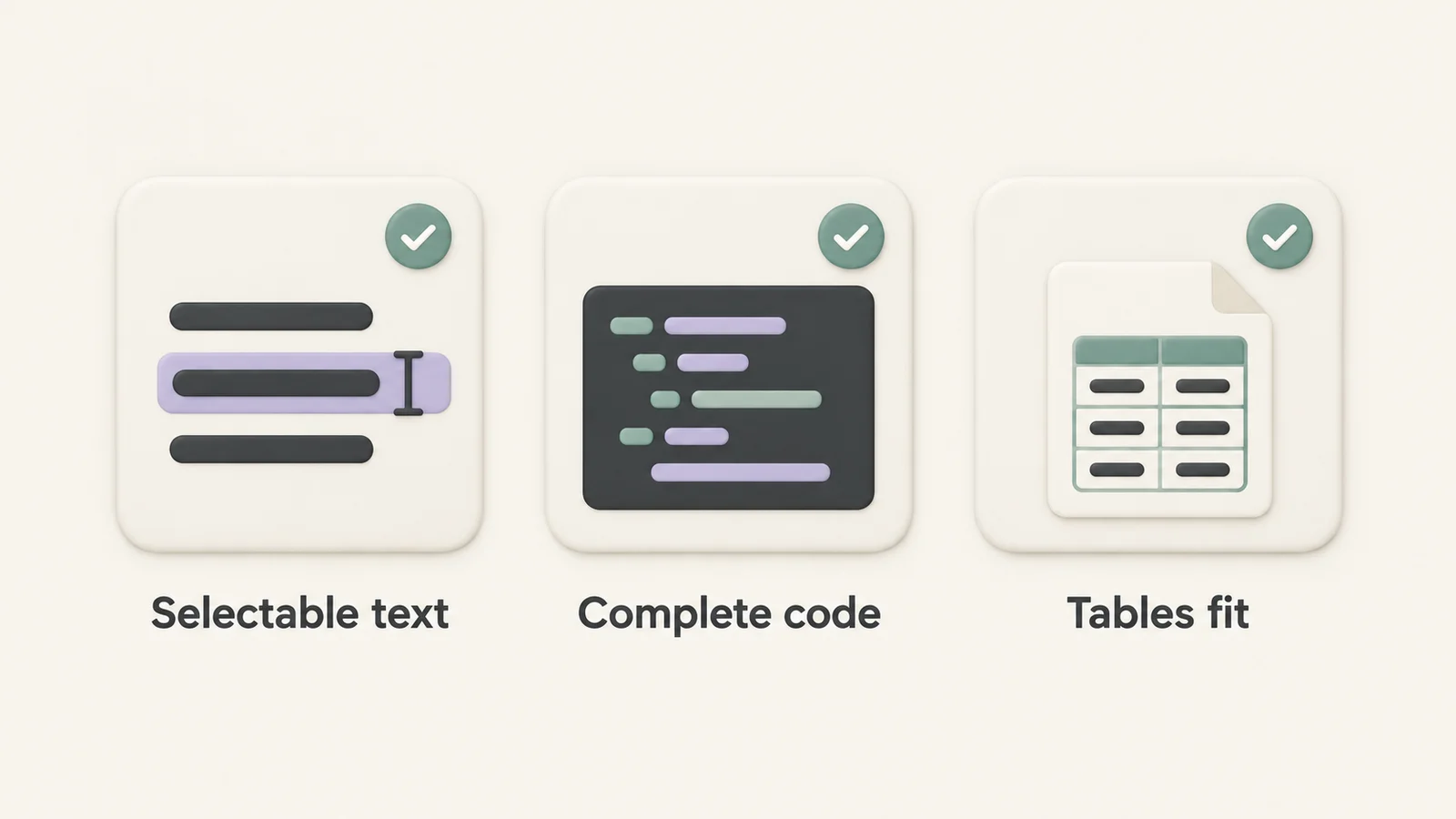
Review the PDF in this order:
- Completeness: confirm that the first and last intended messages are present, with no missing sections between them.
- Selectable text: highlight a sentence and try searching for a distinctive phrase. A screenshot-based PDF will not behave like ordinary text unless it has a recognized text layer.
- Code blocks: check the end of long lines, indentation, symbols, and page transitions.
- Tables and images: confirm that every column, image, and chart is present and readable.
- Characters: inspect quotation marks, dashes, mathematical symbols, and non-English text for missing or incorrect glyphs.
- Page layout: check for stranded headings, excessive blank space, and text that is too small.
- Interface cleanup: remove unwanted sidebar elements, buttons, or browser-added headers and footers.
Quick Fixes If the PDF Still Looks Wrong
| Problem | What to try next |
|---|---|
| Sidebar or interface controls appear | Collapse the sidebar and check print preview, or use Chat Export |
| Browser-printed code is clipped | Try Landscape or a slightly smaller print scale |
| Exported PDF text is too small | Increase the PDF font size and review the resulting page count |
| A table is too wide | Adjust the document layout in Docs or Word |
| Uneven spacing or awkward breaks persist | Export DOCX or paste into an editor and adjust the document |
| Messages or images are missing | Check the original conversation and confirm the content is available before exporting again |
Start with browser printing for a quick save. Move to Docs or Word when you need to edit the document. Use StylerGPT when a repeatable chat export workflow fits the way you work, and inspect the saved PDF before sharing it.
FAQs
Why Does ChatGPT PDF Formatting Break?
Browser printing must turn a scrolling web page into fixed-size pages. Wide tables, horizontally scrolling code, page styles, and content that has not loaded can produce clipping or missing sections. Print preview helps reveal these problems, but the final PDF still needs a check.
When Should I Use Docs or Word Instead?
Use a document editor when you need to revise the text, rearrange sections, style headings, or choose page breaks. Keep the editable document as well as the PDF. If you use StylerGPT, exporting DOCX gives you another starting point for that editing workflow.
How Can I Stop Code From Being Cut Off?
For browser printing, try Landscape and reduce scale carefully. In a document editor, check code indentation, use a monospaced font, and adjust wrapping or page width. For Chat Export, review the PDF settings and generated file; if a complex block still does not fit well, finish the layout in DOCX before saving as PDF.
Does Making the Chat Wider Fix the Exported PDF?
It may change a browser print preview, depending on the page's print styles. StylerGPT's PDF export uses a separate page layout, so use its PDF font-size and margin options. On-screen chat width primarily controls how you read the conversation in ChatGPT.
Can I Save Only the Assistant's Replies?
Yes. StylerGPT Chat Export lets you choose all messages or only assistant responses. In Docs or Word, you can also copy only the replies you want before saving the document as PDF.
Sources
Official references used to support the product details and factual claims in this article.