
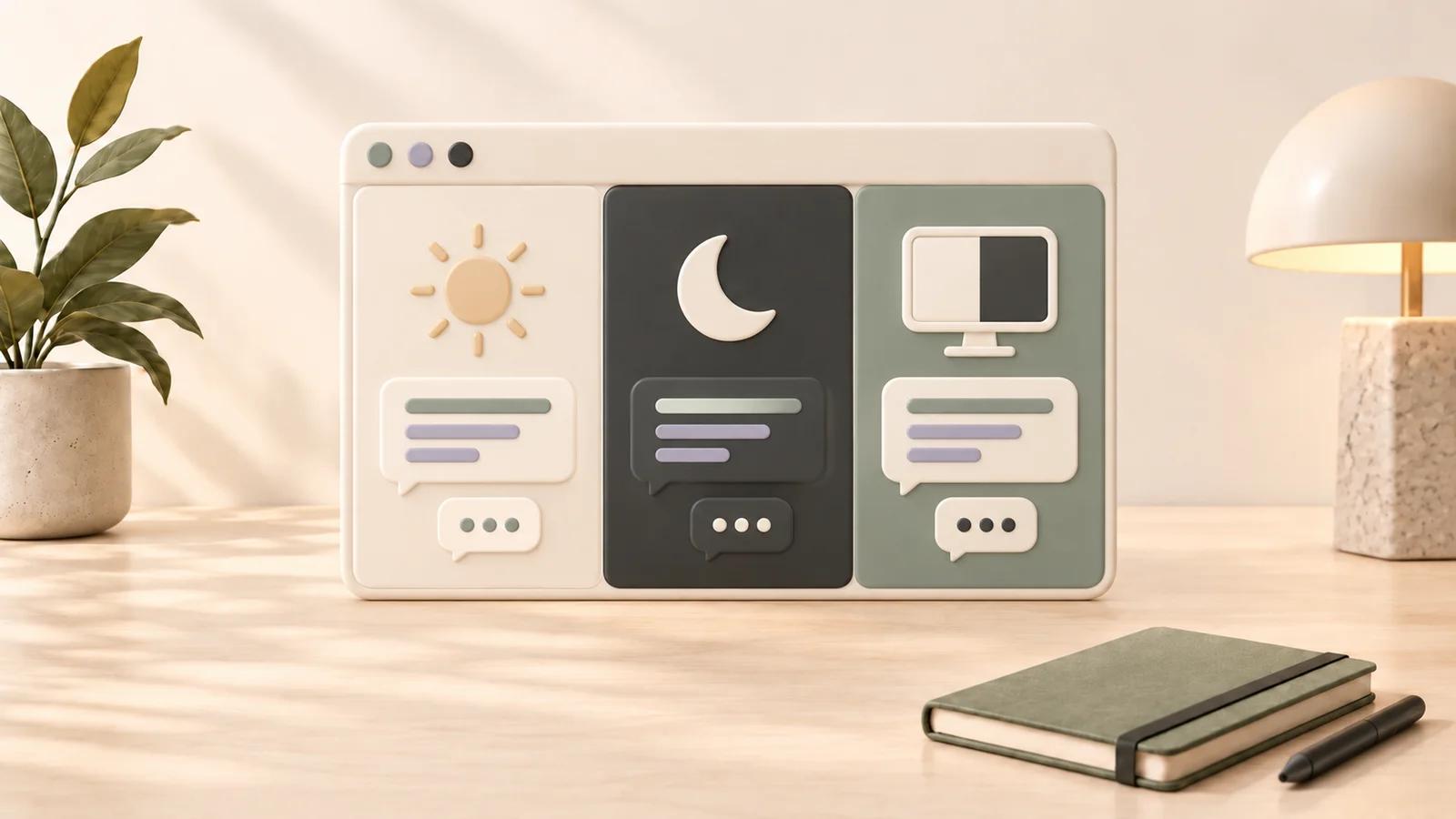
How to Switch Themes on ChatGPT Web
To change ChatGPT's browser theme, I open Settings → General → Appearance and choose Light, Dark, or System. These three built-in options need no extension. If your interface uses the label Theme, look there for the same appearance choices.
I choose Light or Dark for a fixed look, or System to follow my computer's theme. I set my preference on each device rather than expecting it to carry over between the web and mobile apps.
For fonts, backgrounds, or chat-width controls, StylerGPT is an optional desktop-browser extension. You do not need it to switch ChatGPT's built-in appearance.
How to Switch Between Light, Dark, and System
- Open ChatGPT and sign in.
- Open your profile menu, then select Settings.
- Select General and find Appearance (or Theme, if that is the label shown).
- Choose System, Light, or Dark.
Check the conversation area after choosing a mode. If the appearance does not change, use the troubleshooting checks below.
How the Three Modes Differ
| Mode | Interface appearance | Follows computer theme? |
|---|---|---|
| Light | Light interface | No |
| Dark | Dark interface | No |
| System | Matches your computer's current light or dark appearance | Yes |
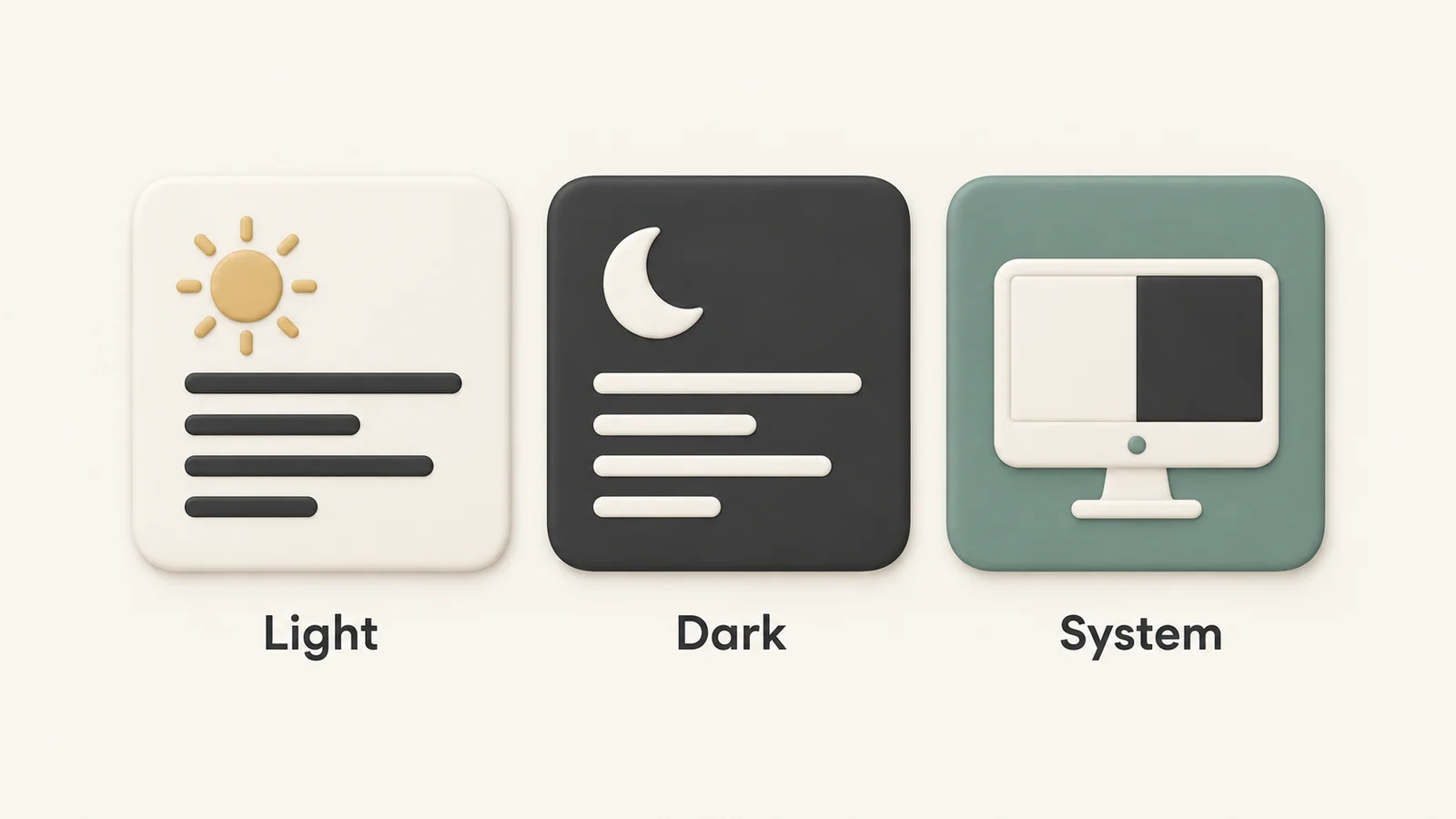
Light and Dark stay fixed; System follows your device. This illustration represents the choices rather than an actual settings screen.
Choose a Mode for Your Workspace
Try Light in a bright room or Dark in a dim room, then keep the mode that makes the conversation easiest for you to read. If you would rather have ChatGPT follow your computer's theme, choose System.
Room lighting, screen brightness, and contrast can all affect your reading experience. Our light versus dark theme guide explains how to compare the two in your own workspace.
For customization beyond these built-in options, you can install StylerGPT for Firefox or explore the appearance controls below.
Optional Appearance Controls With StylerGPT
StylerGPT adds appearance controls beyond Light, Dark, and System. It supports wallpapers, fonts, colors, and chat width in Chrome, Edge, and Firefox. Use it when you want to personalize more of your workspace.
The Free plan includes color palettes. Pro and Power add controls for fonts, backgrounds, and layout, while Power also includes ready-made theme presets. See current plans and allowances for the full comparison.
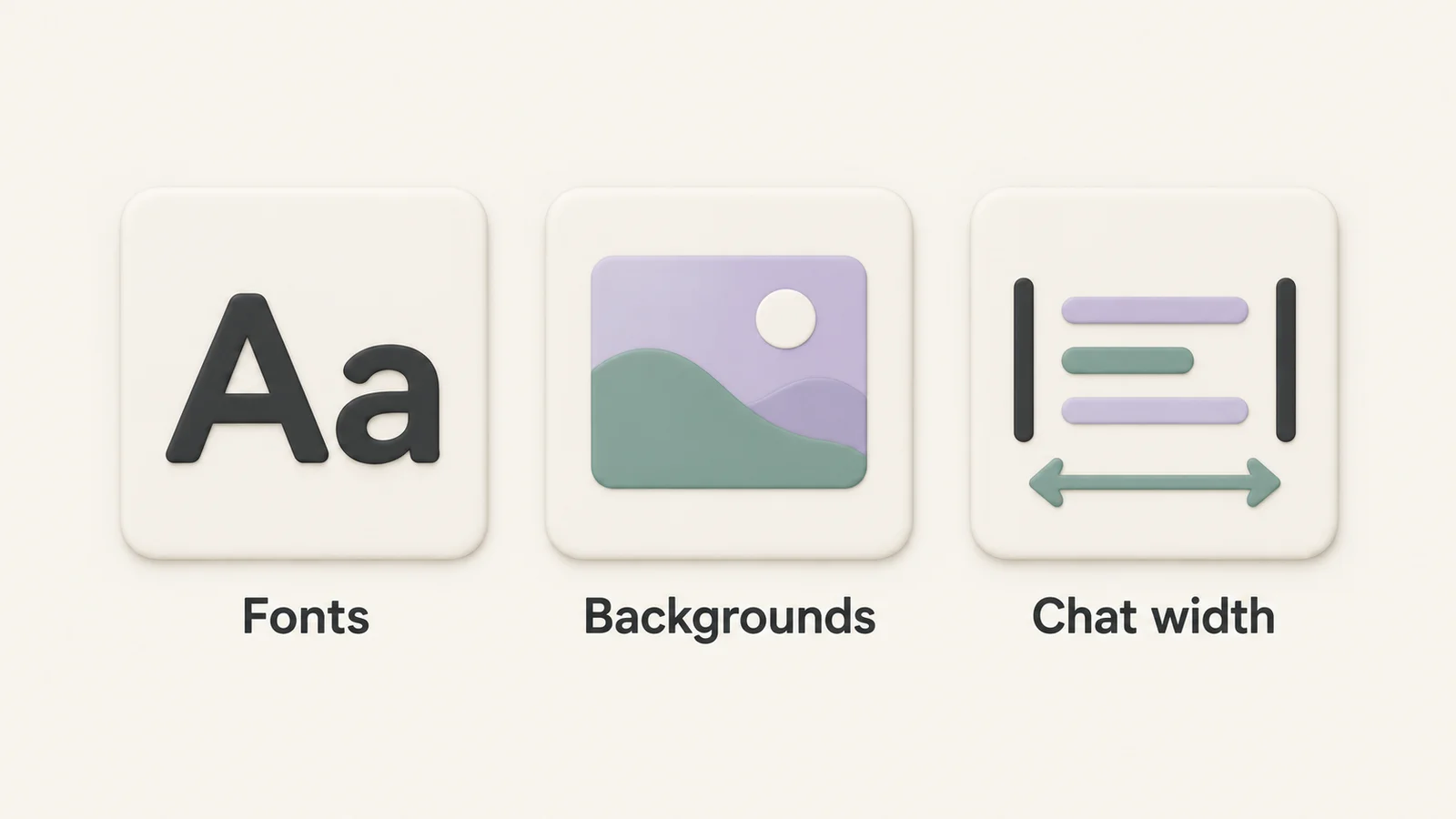
Typography, background images, and chat width are additional customization choices. These symbols illustrate the controls rather than a real extension screen.
Start with one change at a time: choose a font you find comfortable, keep the background subtle enough to read over, and adjust chat width to suit your screen. For more ideas, explore the StylerGPT feature catalog.
If the native appearance option is missing or your changes do not persist, check the next section before adding more customizations.
Fix Missing Settings or Appearance Changes
If the native setting is missing or is not applying, try these checks:
- Check the menu label. Sign in at chatgpt.com and open Settings → General → Appearance. Look for Theme if your interface uses that label.
- Check your computer's theme. If System produces no visible change, ChatGPT may already match your computer. Check Personalization → Colors in Windows or Appearance in macOS.
- Check overlapping extensions. Temporarily disable extensions that override colors, such as Dark Reader, Stylus, or StylerGPT, then try the native setting again. Competing appearance controls can make the result difficult to diagnose.
For StylerGPT, select Pause Customizations in Settings to turn off its customizations without resetting your setup. The pause state resets after the next extension update. You can also check the StylerGPT FAQ for more troubleshooting tips.
Conclusion: Start With Native Appearance Settings
Open Settings → General → Appearance, or Theme if that is the label in your interface. Choose a fixed light or dark look, or let System follow your computer.
If you want more control, StylerGPT adds extras such as custom fonts, background images, and adjustable chat width.
FAQs
Why does my theme reset after restarting my browser?
First check which setting is changing. For ChatGPT's native appearance, confirm that you are signed in to the intended account and check the appearance preference on that device. If you chose System, a change to your computer's theme can also change ChatGPT's appearance.
For a StylerGPT setup, check that the extension is enabled and has permission to access ChatGPT. Browser cleanup settings that remove extension data can erase saved customizations. StylerGPT settings do not automatically sync between browsers or devices.
If the issue continues, update your browser and StylerGPT. Then select Pause Customizations in StylerGPT's Settings to check whether your current customizations are involved.
Can dark mode switch on automatically at sunset?
ChatGPT's appearance menu offers Light, Dark, and System rather than its own sunset schedule. Choose System if you want it to follow your device. A sunset change then depends on your operating system switching its appearance at that time.
Does changing my theme affect shared chats?
Your appearance choices change your own view. They do not edit the conversation content or impose your StylerGPT fonts, wallpaper, or chat width on someone opening a shared link. The viewer uses their own appearance settings.
Sources
Official references used to support the product details and factual claims in this article.