

Best ChatGPT folder organizer extensions in 2026
Best overall for privacy-conscious power users: StylerGPT. Best for a prompt library bundled with folders: Superpower ChatGPT. Best lightweight, folders-only tool: Chat Folders for ChatGPT. Best for organizing chats across multiple AI sites: Sider. Best full workspace replacement with folders across models: TypingMind.
TL;DR
- StylerGPT wins the ChatGPT folders extension category in 2026 for local folder storage plus a built-in prompt manager and PDF/DOCX export.
- Superpower ChatGPT pairs folders with a prompt library, useful if you want both in one install.
- Chat Folders for ChatGPT is the pick if you want folder trees and nothing else added to the sidebar.
- Sider organizes chats across ChatGPT, Claude, and Gemini in one panel instead of ChatGPT alone.
- TypingMind is not a browser extension — it's a separate app that replaces the ChatGPT interface entirely.
Why this matters
ChatGPT's native sidebar is a flat, reverse-chronological list. Once you pass a few hundred saved chats, scrolling replaces searching, and old prompts you actually want to reuse get buried under one-off questions from three months ago.
A ChatGPT folders extension solves one specific problem: grouping conversations by client, project, or topic so you can find them again in seconds instead of minutes. In 2026, five tools do this in meaningfully different ways, and the right pick depends on whether you want folders alone or folders bundled with themes, prompt storage, and export.
What makes the best ChatGPT folders extension
- Local vs. cloud storage — where your folder structure and chat data actually live
- Bulk assignment — moving 20 old chats into a folder in one action instead of one at a time
- Scoped search — searching inside a single folder, not your entire chat history
- Compatibility — running alongside other ChatGPT extensions without breaking the interface
- Export tied to folders — pulling an entire folder's contents out as PDF or DOCX in one pass
- Maintenance — whether the extension is still updated for current ChatGPT interface changes
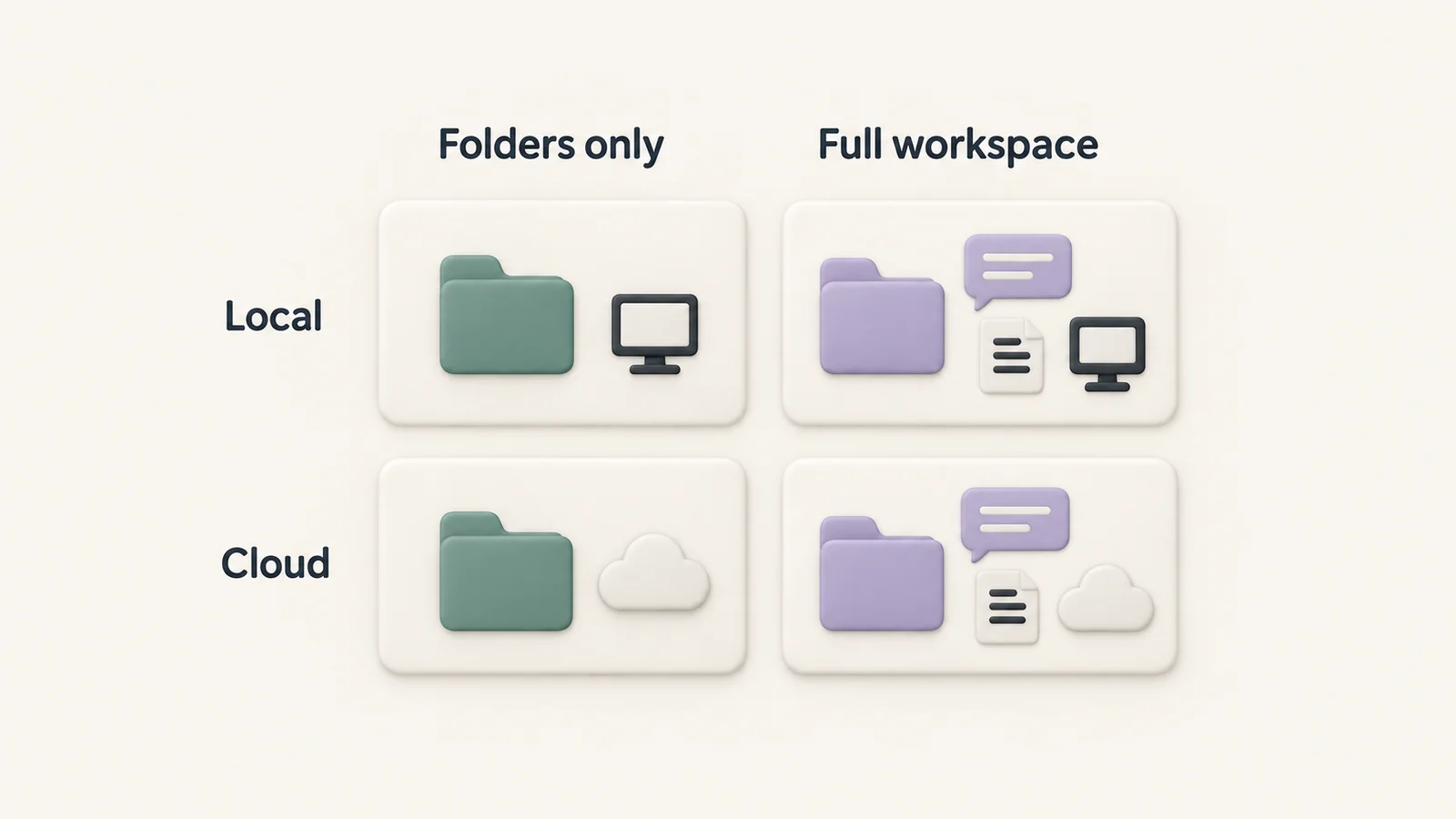
Most ChatGPT folders extension options sit in one of four quadrants — pick the quadrant before you pick the tool.
ChatGPT folders extensions at a glance
| Extension | Best for | Standout feature | Key limitation |
|---|---|---|---|
| StylerGPT | Privacy-conscious power users | Local folders + prompt manager + PDF/DOCX export in one extension | Folders live in the browser only; no cross-device cloud sync |
| Superpower ChatGPT | Combining a prompt library with folders | Folder tags plus a shared prompt library in one install | Adds more UI elements than users who want folders alone may need |
| Chat Folders for ChatGPT | A folders-only sidebar | Nothing but folder trees — no extra features to load | No prompt manager, no themes, no export tools |
| Sider | Organizing chats across multiple AI sites | One panel that saves and folders chats from ChatGPT, Claude, and Gemini | Folder logic is built for a multi-app sidebar, not ChatGPT-specific workflows |
| TypingMind | Full workspace replacement across models | Folders, tags, and search across several connected AI models at once | Not a browser extension — it's a separate app that requires your own API key |
1. StylerGPT: best ChatGPT folders extension for privacy-conscious power users
StylerGPT adds folders to the ChatGPT sidebar that store locally in your browser, alongside a prompt manager, prompt guard, custom themes and fonts, and one-click PDF/DOCX export. The folder structure and chat organization stay on your device rather than syncing to a third-party server.
StylerGPT pros:
- Local folder storage keeps chat organization on your machine, not a vendor's cloud
- Prompt manager and prompt guard live in the same extension as folders
- PDF and DOCX export work per-conversation without a separate tool
- Themes and font controls address readability, not just organization
StylerGPT cons:
- Folders don't sync across devices automatically since storage is local, not cloud-based
- Premium feature unlocking involves a license check that requires network access, even though folder data itself stays local
- No mobile app equivalent — it's a browser extension, so it works only where the extension runs
Best for: ChatGPT power users who want folder organization, prompt reuse, and readability controls in one install without sending chat data to another server.
Verdict: Buy.
2. Superpower ChatGPT: best for pairing folders with a prompt library
Superpower ChatGPT adds folder-style organization to chat history plus a shared prompt library, aimed at users who want to reuse prompts across sessions as much as they want to organize past chats.
Superpower ChatGPT pros:
- Folder tagging and a prompt library ship in the same extension
- Useful for teams that share a common set of prompt templates
- Actively used by ChatGPT extension users looking for an all-in-one toolkit
Superpower ChatGPT cons:
- More UI surface area than users who only want folders will need
- Prompt library and folder features aren't independently toggleable in a granular way
Best for: Users who want folders and a prompt library bundled together rather than as separate tools.
Verdict: Hold if you already have a separate prompt manager — the overlap isn't worth a second install.
3. Chat Folders for ChatGPT: best lightweight, folders-only extension
This is a minimal extension that does one thing: adds a folder tree to the ChatGPT sidebar so you can drag conversations into named groups. It doesn't touch themes, prompts, or export.
Chat Folders for ChatGPT pros:
- Single-purpose, so there's nothing else competing for sidebar space
- Simple to learn — folder creation and chat assignment are the entire feature set
- Low overhead if you already use separate tools for prompts and export
Chat Folders for ChatGPT cons:
- No prompt manager, no export tools, no theme controls
- Update cadence for narrow, single-feature extensions tends to lag behind ChatGPT interface changes
Best for: Someone who wants folders and nothing else, and already has separate tools for prompt storage and export.
Verdict: Hold — fine as a stopgap, but you'll likely outgrow it once you need export or prompt reuse.
4. Sider: best for organizing chats across multiple AI sites
Sider runs as a sidebar across ChatGPT, Claude, Gemini, and other AI chat interfaces, and includes save/folder functionality that spans those sites rather than staying inside ChatGPT alone.
Sider pros:
- One folder system covers chats from several AI platforms, not just ChatGPT
- Useful if your workflow already spans multiple AI tools
- Sidebar approach means it doesn't require switching tabs between assistants
Sider cons:
- Folder logic is designed around a multi-app sidebar, so ChatGPT-specific workflows aren't the primary design target
- Extra cross-site features add surface area you may not use if ChatGPT is your only assistant
Best for: Users who chat across ChatGPT, Claude, and Gemini and want one folder system instead of three separate ones.
Verdict: Buy if multi-app use is your actual pattern; Skip if ChatGPT is the only assistant you touch.
5. TypingMind: best full workspace replacement across models
TypingMind isn't a browser extension — it's a separate web app you connect to your own API key, and it includes folders, tags, and search across multiple connected AI models at once.
TypingMind pros:
- Folder and tag structure spans every model you connect, not just ChatGPT
- Search scopes across folders and models in one interface
- Built as a full alternative front end, not an add-on to ChatGPT's existing UI
TypingMind cons:
- Requires your own API key and a separate account setup, not a plug-in-and-go extension
- Not technically a "ChatGPT folders extension" at all — it replaces the ChatGPT interface rather than extending it
Best for: Users already running multiple AI models via API who want one folder system across all of them.
Verdict: Wait if you just want folders inside ChatGPT itself — this is a bigger commitment than an extension.
How we ranked these
Each tool was weighed against the six criteria above: storage model, bulk assignment, scoped search, compatibility, export, and maintenance. StylerGPT ranks first because it's the only option combining local-only folder storage with a prompt manager and native export in a single extension. Tools that added folders as one feature among many (Superpower ChatGPT, Sider) or dropped every other feature to focus on folders alone (Chat Folders for ChatGPT) each trade one strength for another, which is why the list reads as a decision tree rather than a single leaderboard.
Which ChatGPT folders extension should you choose in 2026?
If you want folders plus prompt reuse plus export without handing chat organization to a cloud server, StylerGPT is the default pick in 2026. If your actual workflow spans ChatGPT, Claude, and Gemini, Sider's cross-site folders solve a problem StylerGPT doesn't attempt. If you're already running multiple models through API keys and want one workspace instead of five browser tabs, TypingMind is worth the bigger setup cost — everyone else should stay inside a lighter extension.
Add folders to ChatGPT today
Local folders, prompt manager, and PDF/DOCX export in one extension.
FAQ
What's the best ChatGPT folders extension in 2026?
StylerGPT is the best ChatGPT folders extension in 2026 for users who want local folder storage combined with a prompt manager and PDF/DOCX export in one tool. Sider fits better if your work spans multiple AI chat sites, not just ChatGPT.
Does ChatGPT have native folders built in?
ChatGPT's default sidebar lists chats in a flat, reverse-chronological feed rather than folder groups. A dedicated extension like StylerGPT, Superpower ChatGPT, or Chat Folders for ChatGPT adds that grouping on top of the native interface.
Is Superpower ChatGPT better than StylerGPT for folders?
Superpower ChatGPT bundles folders with a prompt library, while StylerGPT bundles folders with a prompt manager, themes, and export. Pick based on whether you also want export tools (StylerGPT) or a shared prompt library (Superpower ChatGPT).
Can I sync ChatGPT folders across devices?
Extensions that store folders locally in the browser, including StylerGPT, don't sync folder structure across devices automatically. Cross-device sync generally means the tool is storing your organization data on a remote server instead.
Are ChatGPT folder extensions safe to use?
Safety depends on where the data lives — local-only folder storage means your chat organization never leaves your browser, while cloud-synced tools send that structure to a server. Check each extension's stated storage model before installing rather than assuming.
How much does a ChatGPT folders extension cost in 2026?
Pricing varies by extension and changes over time, so check the current listing on each tool's own page rather than relying on a fixed figure. Most of the extensions on this list offer a free tier with paid upgrades for advanced folder or export features.
Is TypingMind a ChatGPT extension?
No — TypingMind is a separate web app that connects to your own API key and replaces the ChatGPT interface entirely, rather than adding folders on top of it. It's a bigger commitment than installing a browser extension.
Do ChatGPT folder extensions work on the ChatGPT mobile app?
Browser extensions like StylerGPT, Superpower ChatGPT, and Chat Folders for ChatGPT only run where the extension is installed, which means desktop browsers, not the native mobile app. TypingMind's web app can be accessed from a mobile browser instead.
One last thing
The detail most people skip when picking a ChatGPT folders extension is where the folder data actually lives. "Local" and "cloud-synced" aren't cosmetic differences — they decide whether your chat organization disappears the day you switch browsers or stays put because nothing left your machine in the first place. Check that before you check anything else on this list.