
Best ChatGPT theme extensions in 2026
Best overall: StylerGPT wins this 2026 ChatGPT theme extension comparison by pairing dark and light theme presets with font controls, local chat folders, a prompt manager, and PDF/DOCX export in a single install. Best for custom CSS across ChatGPT and other sites: Stylus. Best for cross-site dark-mode controls: Dark Reader. Best no-install option for temporary tweaks: manual browser DevTools styling — useful for a session, but ordinary live edits disappear when you reload the page.
TL;DR
- StylerGPT is our top ChatGPT theme extension pick in 2026 for full interface control: themes, fonts, folders, prompt manager, and export.
- Stylus wins for custom CSS across ChatGPT and other sites, but you write or find the styles yourself.
- Dark Reader suits users who want dark-mode controls across websites. If you only need ChatGPT's standard dark appearance, try its built-in theme setting first.
- Manual DevTools styling needs no extension, but ordinary edits are temporary and selectors may need updating when ChatGPT changes its interface.
Why this matters
Power users who spend hours a day inside ChatGPT want comfortable typography, folders that keep old chats from disappearing into an endless sidebar, and a way to reuse prompts without retyping them each session. A ChatGPT theme extension solves the visual half of that problem. Some also solve the workflow half — folders, prompt reuse, and export — instead of stopping at color swaps.
People searching for a ChatGPT theme extension often want two things at once: a look they can live with, and fewer repetitive steps in how they use ChatGPT day to day. That distinction is why this list ranks tools by use case instead of by a single leaderboard.
What makes the best ChatGPT theme extension
- Theme depth — preset themes you toggle versus custom CSS you write and maintain yourself.
- Font and readability controls — size, spacing, and contrast, not just a color change.
- ChatGPT-specific features — folders, a prompt manager, and export, versus general site-wide styling.
- Local-first handling — whether chat organization happens in the browser or depends on a separate service.
- Update resilience — whether styles need adjustments after ChatGPT changes its interface.
- Setup time — a toggle in settings versus writing your own CSS rules from scratch.
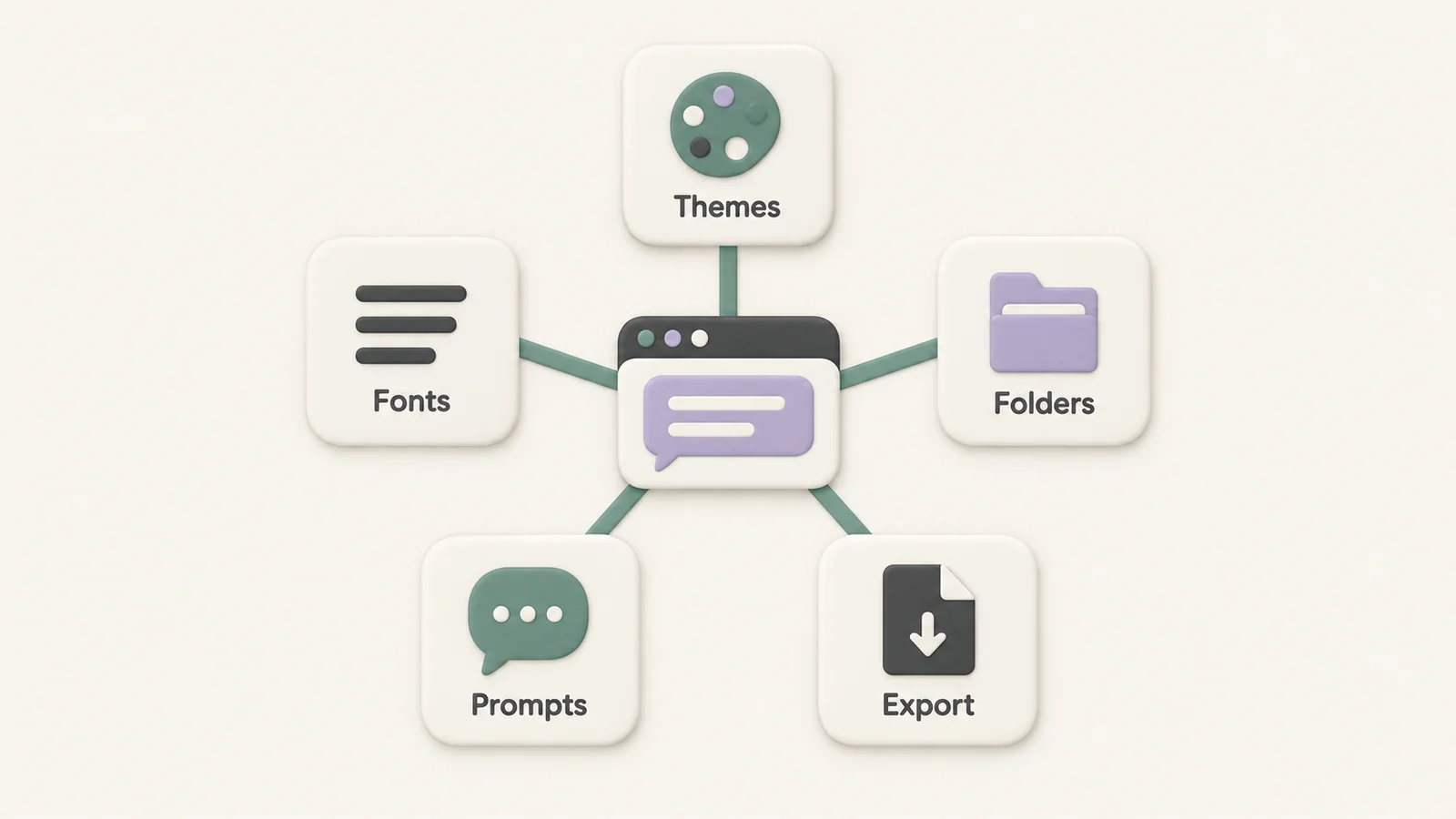
Theming is one spoke; typography, folders, prompt reuse, and export are the others.
At a glance
| Extension | Best for | Standout feature | Key limitation |
|---|---|---|---|
| StylerGPT | Full ChatGPT customization | Themes, fonts, folders, prompt manager, and export in one install | Built for ChatGPT, not general website styling |
| Stylus | Custom CSS across ChatGPT and other sites | Community userstyles plus your own CSS rules | No built-in ChatGPT folders or export |
| Dark Reader | Cross-site dark-mode controls | Automatic dark themes with brightness and contrast adjustments | No ChatGPT folder or prompt tools |
| Manual DevTools styling | One-time tweaks, no install | Direct control over CSS without extension permissions | Ordinary live edits disappear on reload |
1. StylerGPT: best ChatGPT theme extension for full interface customization
StylerGPT is a browser extension built specifically for ChatGPT. It adds theme presets and font controls on top of the default interface, then goes further with chat folders for organizing conversations locally, a prompt manager for reusable prompts, and export to PDF or DOCX.
StylerGPT pros:
- Combines theming with workflow tools such as folders and a prompt manager.
- Font size and spacing controls, not just a dark/light toggle.
- Chat organization happens in local folders rather than a separate app.
- Export to PDF or DOCX without leaving the ChatGPT tab.
StylerGPT cons:
- Built for ChatGPT, so it won't theme general websites or other AI tools.
- Depends on ChatGPT's page structure, so a major redesign can require an extension update.
- Feature availability varies by plan; check the current plans for the tools you need.
Best for: ChatGPT power users who want theming and workflow tools — folders, prompt manager, and export — in one install.
Verdict: Choose it for a complete ChatGPT workspace. StylerGPT is the pick on this list that brings theming and these workflow tools together.
2. Stylus: best ChatGPT theme extension for custom CSS across sites
Stylus is a general-purpose userstyle manager. It lets you write or install custom CSS for websites, including chatgpt.com, and applies those saved styles when you visit.
Stylus pros:
- Supports styling across websites, not just ChatGPT.
- Access to community-shared userstyles alongside anything you write yourself.
- No cost to use the core extension.
Stylus cons:
- No built-in ChatGPT folders, prompt manager, or export.
- Requires finding or writing CSS rather than choosing a ChatGPT-specific preset.
- Custom CSS can break when ChatGPT changes its page structure, until someone updates the style.
Best for: users comfortable writing or copying CSS who want visual tweaks on ChatGPT and other websites.
Verdict: Choose it for CSS flexibility. Stylus is a strong pick for CSS-savvy users but less practical for anyone who wants ready-made ChatGPT customization controls.
3. Dark Reader: best for cross-site dark-mode controls
Dark Reader generates dark color schemes for websites and offers brightness, contrast, and sepia adjustments. ChatGPT already has a dark appearance setting, so Dark Reader is most relevant if you want additional controls or a consistent approach across multiple sites.
Dark Reader pros:
- Applies dark themes across many websites without writing CSS.
- Brightness, contrast, and sepia adjustments beyond a simple toggle.
- Includes font-related options, as described in its official help.
Dark Reader cons:
- No ChatGPT-specific organization tools such as folders or a prompt manager.
- Not a library of ChatGPT-specific wallpaper themes or workflow tools.
- Automatic styling can produce unexpected colors on some page elements.
Best for: users who want dark-mode adjustments across their browser and don't need ChatGPT workflow features.
Verdict: Choose it for broader dark-mode control. If all you need is ChatGPT's native dark appearance, start with the built-in setting.
4. Manual DevTools styling: best ChatGPT theme extension alternative with no install
Browser DevTools let you change CSS directly on ChatGPT's page using the built-in style editor — no extension required. Chrome's CSS editing guide explains the basic workflow.
Manual DevTools styling pros:
- No extension installation or extension permissions.
- Direct control over the CSS rules you edit.
- Useful for testing a visual change before saving it as a userstyle.
Manual DevTools styling cons:
- Ordinary live edits vanish on refresh unless you separately save and reapply them.
- No folders, prompt manager, or export — this is visual styling only.
- ChatGPT layout changes can require updating your selectors.
Best for: users who want a one-off visual tweak without installing an extension.
Verdict: Use it for experiments. Fine for a single session, but a saved userstyle is more practical for a daily setup.
Try StylerGPT on ChatGPT
Add themes, fonts, folders, prompt manager, and export in one install.
How we ranked these
This editorial comparison uses the six criteria above: theme depth, font controls, ChatGPT-specific features, local-first handling, update resilience, and setup time. It is a use-case guide, not a benchmark of compatibility or update speed. StylerGPT is our first pick for combining ChatGPT customization and workflow tools. Stylus offers broader CSS flexibility. Dark Reader focuses on dark-mode controls across websites. Manual CSS offers direct control with more upkeep.
Choose the approach that matches what you need. Saved extension styles can be reapplied on reload, but no tool that depends on a website's layout is immune to changes in that layout.
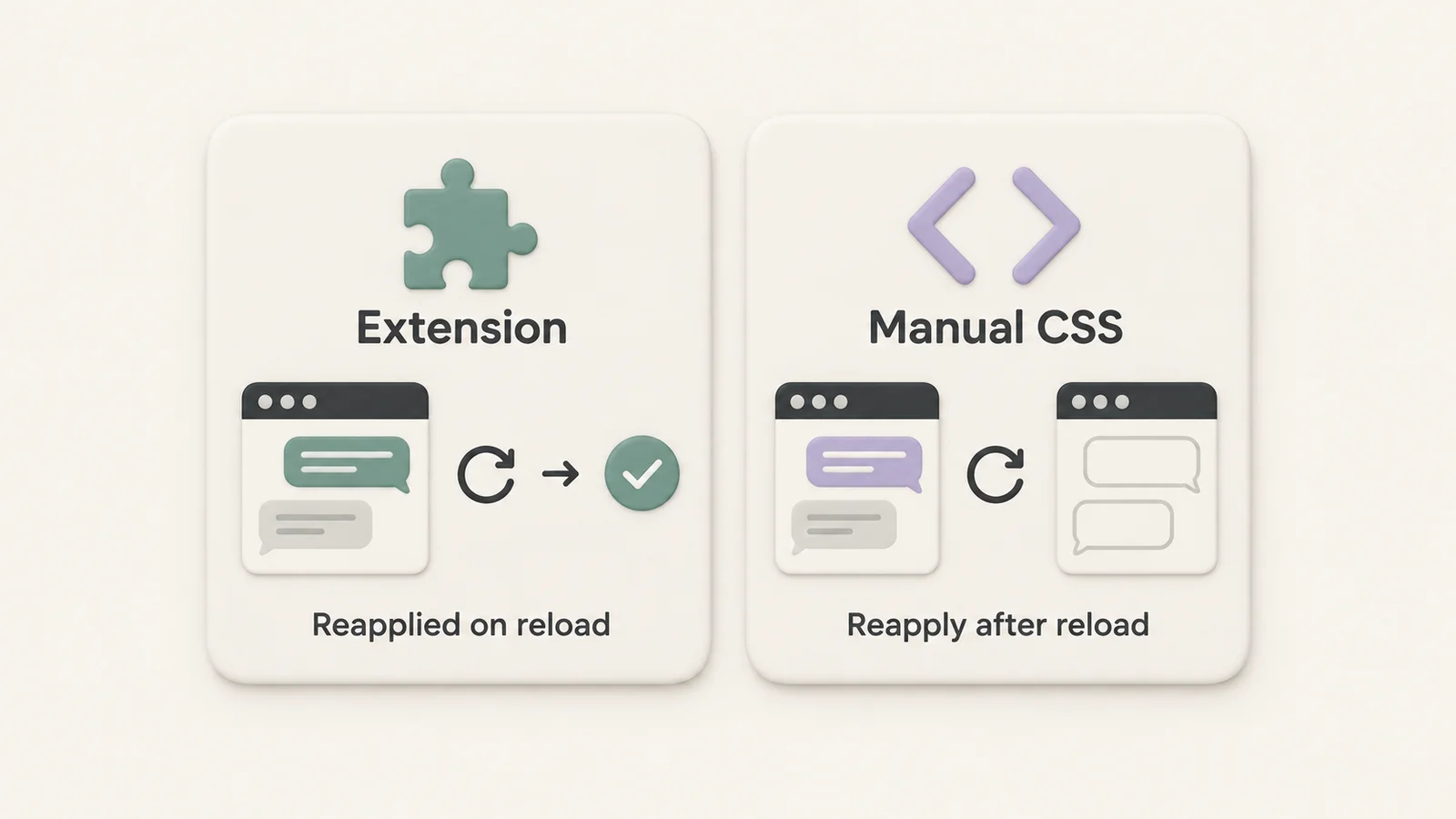
Saved extension styles are reapplied automatically; ordinary DevTools edits need to be reapplied after a reload.
Which ChatGPT theme extension should you choose?
If you spend hours in ChatGPT every day, StylerGPT is our default pick for a combined theme and workflow setup — it pairs theming with folders, a prompt manager, and export. If you already use custom CSS across websites, Stylus fits that habit better. If you want cross-site dark-mode adjustments, consider Dark Reader. Manual DevTools styling fits a five-minute experiment when you don't want to install anything.
Pick the row that matches what you need, not the one with the longest feature list.
FAQ
What's the best ChatGPT theme extension in 2026?
StylerGPT is our best all-around pick for ChatGPT customization because it combines theme presets and font controls with chat folders, a prompt manager, and PDF/DOCX export. Stylus and Dark Reader suit narrower needs: CSS flexibility and cross-site dark-mode adjustments.
Is StylerGPT better than Stylus for ChatGPT theming?
StylerGPT is better suited to ChatGPT-specific features such as folders, prompt reuse, and export, while Stylus suits users who want to write or install custom CSS across websites. One focuses on a ChatGPT workspace; the other manages userstyles.
Does Dark Reader work on ChatGPT?
Dark Reader can apply its styling to ChatGPT, although results can depend on the page and your settings. ChatGPT also has its own dark appearance setting. Dark Reader does not add folders, a prompt manager, or conversation export.
Can I customize ChatGPT without installing an extension?
Yes, you can change CSS through your browser's DevTools style editor. Ordinary live edits disappear on refresh unless you save and reapply them separately.
Do ChatGPT theme extensions read my conversations?
An extension with permission to access chatgpt.com may be able to read page content. Check its requested permissions and privacy policy, including whether chat data and folders stay in the browser or are sent to an external service.
How much does StylerGPT cost?
Check the current StylerGPT plans for pricing and feature availability. This comparison focuses on use cases rather than quoting prices that may change.
Will a ChatGPT theme extension break when ChatGPT updates its interface?
Extensions and userstyles that depend on ChatGPT's page structure can be affected when the layout changes. Compatibility depends on the specific change and how the extension or style is maintained; no approach guarantees immunity to updates.
Can I export ChatGPT conversations as PDF with a theme extension?
StylerGPT includes PDF and DOCX export alongside its theming features. Stylus and Dark Reader focus on styling and do not provide conversation export tools.
One last thing
Before installing a ChatGPT theme extension, check its host permissions, publisher, and privacy policy. Broad page access can allow an extension to read content rendered on that page. Incognito mode does not replace that review or remove permissions you grant. Choose a tool you trust, and don't assume every extension handles chat data the same way just because it calls itself a theme tool.